Website speed is crucial for user experience and search engine ranking. Slow loading times, often caused by poorly optimized images, can lead to high bounce rates and lost revenue. This guide provides seven actionable steps to significantly improve your website’s performance by optimizing your images for web use. We’ll cover image formats, resizing techniques, delivery methods, and caching strategies, empowering you to create a faster, more efficient online experience.
Understanding image optimization isn’t just about making your website look good; it’s about ensuring it functions optimally. By mastering the techniques Artikeld here, you’ll not only improve your site’s speed but also enhance the overall user experience, leading to increased engagement and better search engine visibility. Let’s dive into the details and transform your website’s image loading times.
Understanding Image File Formats and Compression

Optimizing images for web performance involves a deep understanding of various file formats and their associated compression techniques. The choice of format significantly impacts both the visual quality and the file size of your images, directly affecting your website’s loading speed. Selecting the right format and employing effective compression strategies are crucial steps in optimizing your website’s performance.
Image File Format Comparison
JPEG, PNG, GIF, and WebP are the most common image formats used on the web, each with its strengths and weaknesses. JPEG is ideal for photographs and images with smooth color gradients due to its lossy compression, which discards some image data to reduce file size. PNG is preferred for images with sharp lines, text, and logos because it uses lossless compression, preserving all image data. GIF supports animation and is suitable for simple images with limited colors, employing lossless compression. WebP, a newer format, offers both lossy and lossless compression and often achieves smaller file sizes than JPEG and PNG, with comparable or superior quality. Choosing the appropriate format depends on the image’s content and the desired balance between quality and file size. For example, a product photograph would benefit from JPEG’s high compression ratio, while a website logo would be better served by PNG’s lossless compression to maintain sharp edges.
Compression Techniques and Their Impact
Various compression techniques are available for each image format, influencing the final file size and visual quality. Lossy compression techniques, such as those used in JPEG and WebP, reduce file size by discarding some image data. The degree of compression can be adjusted, with higher compression resulting in smaller files but potentially noticeable quality loss. Lossless compression techniques, like those used in PNG and GIF, preserve all image data, resulting in larger file sizes but maintaining the original image quality. The specific algorithms used within each format also affect the compression efficiency. For instance, JPEG uses Discrete Cosine Transform (DCT) to compress data, while PNG utilizes a combination of filtering and deflate compression.
| Format | Compression Technique | Quality Impact | File Size Impact |
|---|---|---|---|
| JPEG | Lossy (DCT) | Can be significant at high compression levels; minimal at low compression | Significantly smaller files; increases with lower compression levels |
| PNG | Lossless (Deflate, filtering) | No loss of quality | Larger files compared to JPEG; varies based on image complexity |
| GIF | Lossless (LZW) | No loss of quality; limited color palette | Relatively small files for simple images; larger for complex images |
| WebP | Lossy and Lossless | Lossy compression can result in significant reduction in file size with minimal quality loss; lossless maintains original quality | Generally smaller than JPEG and PNG for similar quality levels |
Optimizing Images Using Free Online Tools
Optimizing images without significant quality loss involves a systematic approach. Several free online tools can streamline this process. Here’s a step-by-step guide:
- Choose the Right Format: Select the format best suited for your image (JPEG for photos, PNG for graphics, WebP for a balance of both).
- Upload the Image: Use a free online image compressor such as TinyPNG, ImageOptim, or Compressor.io. Upload your image to the chosen tool.
- Adjust Compression Settings (if available): Some tools allow adjusting compression levels. Start with a moderate setting and check the resulting image quality. You can always re-compress with a different setting.
- Download the Optimized Image: Once the compression is complete, download the optimized image. The file size should be noticeably smaller than the original.
- Check Quality: Carefully examine the optimized image to ensure there’s no significant loss of visual quality acceptable for its intended use.
Resizing and Cropping Images for Web Use

Optimizing images for web use involves more than just choosing the right file format. Proper resizing and cropping are crucial for fast loading times and a positive user experience. Images that are too large unnecessarily inflate your website’s file size, leading to longer loading times and frustrated visitors. Conversely, images that are too small can appear pixelated and unprofessional. Finding the right balance is key to a successful online presence.
Using images at their appropriate dimensions significantly impacts your website’s performance. Larger images directly translate to larger file sizes, resulting in slower page load speeds. This can negatively affect your search engine rankings () and bounce rate (users leaving your site quickly). Conversely, excessively small images can appear blurry or pixelated, detracting from your website’s overall aesthetic appeal. The goal is to strike a balance between image quality and file size.
Calculating Optimal Image Dimensions
Determining the ideal image dimensions involves considering the various screen sizes and devices your website visitors will use. A common approach is to target the most prevalent screen resolutions. For example, a common desktop resolution is 1920×1080 pixels. However, responsive web design necessitates images that scale gracefully across different screen sizes. It’s often beneficial to create multiple versions of the same image at different resolutions. This avoids unnecessary scaling by the browser, which can lead to quality loss. For example, you might prepare images optimized for desktop (1920×1080), tablet (1024×768), and mobile (640×480) resolutions. The exact dimensions will depend on your specific design and target audience. You can use online tools or image editing software to resize images while maintaining their aspect ratio.
Impact of Incorrect Image Sizing on Website Performance and User Experience
Using images that are significantly larger than needed directly increases your website’s loading time. A large, high-resolution image on a small mobile screen not only wastes bandwidth but also leads to unnecessary processing on the user’s device. This results in a poor user experience, potentially causing them to leave your site before it fully loads. Conversely, using images that are too small can make them appear blurry and unprofessional. This compromises the visual appeal of your website and diminishes the overall user experience. Imagine a product image so small and pixelated that crucial details are unreadable; this directly impacts the effectiveness of your website. Therefore, careful consideration of image size is essential for both performance and aesthetics.
Image Resizing Techniques
Several techniques can be employed to resize images while minimizing quality loss. Simply shrinking an image using basic resizing tools often results in a loss of detail and sharpness. More sophisticated methods exist to maintain image quality.
Choosing the right resizing technique depends on the specific image and desired outcome. Consider the trade-off between file size reduction and image quality.
- Bicubic Resampling: This technique produces smoother results than simpler methods, making it suitable for images that require a high level of detail.
- Lanczos Resampling: Similar to bicubic, but often considered better for preserving fine details, particularly in images with sharp lines and textures. It’s computationally more intensive.
- Nearest Neighbor Resampling: A faster but less precise method. It’s suitable when speed is prioritized over quality, for example, for images with large blocks of color.
Tools and Techniques for Resizing and Cropping
Many tools are available for resizing and cropping images, each offering different features and capabilities. Choosing the right tool depends on your technical skills and specific needs.
- Adobe Photoshop: A professional-grade image editor with advanced resizing and cropping capabilities. Offers precise control over resampling algorithms and other parameters.
- GIMP (GNU Image Manipulation Program): A free and open-source alternative to Photoshop, offering similar functionalities, although with a slightly steeper learning curve.
- Online Image Resizers: Numerous websites offer free image resizing services, often with simple interfaces and pre-defined sizes. These are convenient for quick resizing tasks, but may lack the advanced features of dedicated software.
- ImageMagick: A powerful command-line tool for image manipulation. Excellent for batch processing and automation, ideal for web developers.
Optimizing Image Delivery and Caching

Efficiently delivering images to users is crucial for a fast-loading website. This involves choosing the right image formats, sizes, and employing strategies to minimize the load on both the server and the user’s browser. Optimizing image delivery and caching significantly impacts the overall user experience and search engine rankings.
Optimizing image delivery focuses on providing the most appropriate image version for each user’s device and connection speed, while caching reduces the need to repeatedly download the same images. This section will explore various methods for achieving both.
Responsive Images and Content Delivery Networks (CDNs)
Responsive images ensure that users see appropriately sized images based on their device’s screen resolution and capabilities. This avoids downloading unnecessarily large images, improving load times, particularly on mobile devices. Content Delivery Networks (CDNs) distribute image content across multiple servers globally, reducing latency by serving images from a server geographically closer to the user.
Responsive images can be implemented using techniques like the `` tags, or JavaScript libraries. CDNs offer significant performance improvements, especially for websites with a large global audience. For instance, a website using a CDN might see a reduction in average image load times from several seconds to under a second for users in different regions, compared to serving images from a single server location. The effectiveness of CDNs is particularly noticeable for users with slower internet connections. The choice between using responsive images and a CDN, or both, depends on the specific needs of the website and its audience. Using both provides the most comprehensive approach to optimized image delivery.
Browser Caching and Server-Side Caching
Browser caching allows the user’s browser to store images locally, eliminating the need to download them again on subsequent visits to the same website. Server-side caching stores images on the web server, reducing the load on the server itself and speeding up delivery. Both methods significantly improve performance by reducing the number of requests made to the server and the amount of data transferred.
A well-implemented caching strategy is essential for website performance. The combination of browser and server-side caching creates a two-tiered system of efficient image delivery. For example, if a user visits a website and an image is cached on their browser, the image is loaded directly from the browser’s cache without contacting the server. If the image is not in the browser cache, the server will serve the image, and depending on server-side caching configuration, the image might be stored in the server’s cache for faster delivery to subsequent users.
Image Caching Flowchart
The following describes a flowchart illustrating the process of image caching:
1. User requests an image: The user’s browser requests an image from the website.
2. Browser cache check: The browser checks its cache for the image.
3. Image found in browser cache: If the image is found, the browser loads the image from the cache. The process ends here.
4. Image not found in browser cache: If the image is not found, the browser requests the image from the server.
5. Server cache check: The server checks its cache for the image.
6. Image found in server cache: If the image is found, the server sends the image to the browser. The browser then caches the image for future use. The process ends here.
7. Image not found in server cache: If the image is not found, the server retrieves the image from its storage, sends it to the browser, and stores it in its cache for future use. The browser then caches the image. The process ends here.
Implementing Image Lazy Loading
Lazy loading is a technique where images are loaded only when they are about to be visible in the viewport. This significantly improves initial page load times, as the browser doesn’t need to download all images at once. It’s particularly beneficial for pages with many images.
Lazy loading can be implemented using HTML’s `loading=”lazy”` attribute for `` tags. This is a simple and widely supported method. For more complex scenarios or older browsers, JavaScript libraries can be used to implement lazy loading. For instance, a JavaScript library might track the user’s scroll position and load images only when they are within a certain distance from the viewport. The difference in initial load time between a page with lazy loading and one without can be substantial, especially on pages with numerous large images. Consider a news website with a long list of articles; lazy loading will only load the images for articles visible to the user, dramatically improving initial page load time.
Last Word
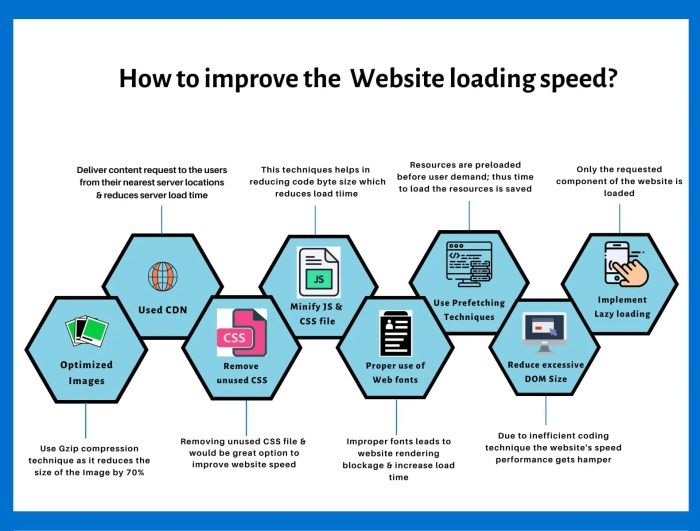
Optimizing your website images is a multifaceted process, but the rewards are substantial. By implementing the seven steps Artikeld – from choosing the right file format and employing effective compression techniques to leveraging caching and lazy loading – you can dramatically reduce page load times, improve user experience, and boost your website’s overall performance. Remember, even small improvements in image optimization can have a significant impact on your site’s success. Start implementing these strategies today and see the difference!