Is your computer running slower than a snail? Frustrated by lag and delays? You’re not alone. Many factors contribute to sluggish computer performance, from accumulating temporary files to outdated software. This guide provides ten actionable tips to revitalize your system’s speed, covering software optimization, hardware considerations, and essential system-level tweaks. Learn how to identify and address performance bottlenecks, ultimately restoring your computer to its peak efficiency.
We’ll explore practical strategies, from disabling unnecessary startup programs and uninstalling unused applications to optimizing your hard drive and adjusting crucial system settings. Whether you’re a tech novice or a seasoned user, these straightforward steps will empower you to reclaim your computer’s speed and enhance your overall computing experience.
Software Optimization
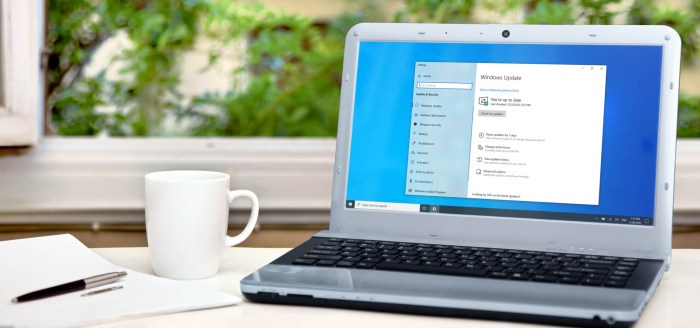
Software optimization plays a crucial role in boosting your computer’s speed. By streamlining your applications and managing system processes effectively, you can significantly improve performance and responsiveness. This involves several key strategies, from managing startup programs to regularly updating your software.
Unnecessary Startup Programs
Many applications automatically launch when you start your computer, consuming valuable resources and slowing down boot times. Identifying and disabling these unnecessary programs can dramatically improve your system’s responsiveness. This can be done through your operating system’s settings.
| Program Name | Description | Startup Impact | Action Taken |
|---|---|---|---|
| Dropbox | Cloud storage synchronization service | High; constantly accesses the hard drive | Disable (unless actively using for file synchronization) |
| Adobe Creative Cloud | Software suite updater and launcher | Medium; checks for updates periodically | Disable (if updates are managed manually) |
| Various Antivirus/Security Software | Real-time protection and scanning utilities | Medium to High; constant background processes | Review and optimize settings; disable unnecessary real-time scanning if other security measures are in place |
| Steam | Gaming platform client | Medium; checks for updates and downloads | Disable (unless actively playing games or downloading) |
Uninstalling Unused Applications and Removing Temporary Files
Unused applications occupy hard drive space and can consume system resources even when not actively running. Uninstalling these programs frees up space and improves performance. Similarly, temporary files accumulate over time, clogging your system. Regularly deleting these files can significantly boost speed. The process of uninstalling applications is usually straightforward; find the application in your system’s control panel or applications manager and select uninstall. Temporary files can often be removed through the disk cleanup utility built into most operating systems.
Software and Driver Updates
Regularly updating your software and drivers ensures you have the latest performance enhancements, bug fixes, and security patches. Outdated software can be slow, unstable, and vulnerable to security threats. The process involves checking for updates within each application or using a dedicated update manager. For drivers, visit the manufacturer’s website to download the latest versions for your hardware. For example, updating your graphics card drivers can significantly improve gaming performance.
Web Browser Performance
Different web browsers have varying performance characteristics. Generally, browsers with simpler interfaces and fewer built-in features tend to be faster. Consider using a lightweight browser like Chrome or Firefox, which offer numerous speed-enhancing extensions. Extensions such as uBlock Origin (ad blocker) and Privacy Badger (privacy enhancer) can significantly reduce page load times by blocking ads and trackers. However, excessive extensions can negatively impact performance, so only install those you genuinely need.
Hardware Considerations
Your computer’s hardware significantly impacts its speed and performance. Understanding your system’s components and their limitations is crucial for optimization. This section will explore the role of RAM, potential hardware bottlenecks, and the differences between various storage types.
RAM and its Impact on Computer Speed
Random Access Memory (RAM) acts as your computer’s short-term memory. The more RAM you have, the more applications and data your system can hold readily available for quick access. Insufficient RAM leads to excessive swapping to the hard drive (or SSD), significantly slowing down performance. This is noticeable as increased lag and application freezes. You can check your available RAM through your operating system’s settings (e.g., System Information in Windows, About This Mac in macOS). Upgrading RAM is generally a straightforward process, but it’s essential to check your motherboard’s specifications to ensure compatibility with the correct type and amount of RAM. Adding more RAM is often a cost-effective way to dramatically improve your computer’s responsiveness.
Identifying and Addressing Hardware Bottlenecks
Hardware bottlenecks occur when one component significantly restricts the performance of the entire system. Common bottlenecks include slow hard drives, underpowered CPUs, and insufficient RAM (as discussed above). A slow hard drive (HDD) can dramatically impact loading times for applications and files. Upgrading to a Solid State Drive (SSD) or NVMe drive is often a significant performance boost. A CPU that’s constantly at 100% utilization can also create a bottleneck. This might indicate the need for a more powerful processor or optimization of resource-intensive applications.
Hard Drive Defragmentation and Optimization
Defragmentation rearranges fragmented files on a hard drive (HDD) to improve access times. This process is less relevant for Solid State Drives (SSDs) which don’t suffer from the same fragmentation issues. Here’s a step-by-step guide for HDD optimization:
- Back up your data: This is crucial in case of unexpected issues during the process.
- Open Disk Defragmenter: Locate the Disk Defragmenter utility in your operating system’s settings.
- Select the drive: Choose the hard drive (HDD) you wish to defragment.
- Analyze the drive: Let the utility analyze the drive to determine the level of fragmentation.
- Defragment the drive: Initiate the defragmentation process. This can take several hours depending on the drive size and fragmentation level.
For SSDs, defragmentation is generally unnecessary and can even be detrimental. Instead, focus on maintaining sufficient free space and regularly removing unnecessary files.
Storage Performance Comparison
| Storage Type | Read/Write Speed | Cost per GB | Durability | Fragmention Susceptibility |
|---|---|---|---|---|
| HDD (Hard Disk Drive) | Relatively slow | Low | Lower | High |
| SSD (Solid State Drive) | Significantly faster than HDD | Medium | Higher than HDD | Low |
| NVMe (Non-Volatile Memory Express) | Fastest | High | High | Low |
System-Level Tweaks
Optimizing your operating system’s settings can significantly impact your computer’s speed and responsiveness. By making a few strategic adjustments, you can free up resources and reduce the strain on your system, leading to noticeable performance improvements. These tweaks are generally safe and easily reversible, allowing you to experiment and find the optimal settings for your workflow.
System settings adjustments can vary slightly depending on your operating system (Windows or macOS), but many principles remain the same. Focusing on reducing unnecessary background processes, limiting visual effects, and choosing appropriate power plans are key strategies for maximizing performance.
Windows and macOS System Settings Adjustments
Fine-tuning specific settings within your operating system can lead to noticeable performance gains. The following table Artikels some key settings and recommended adjustments for both Windows and macOS.
| Setting Name | Adjustment Recommendation |
|---|---|
| Visual Effects (Windows) / Animations (macOS) | Reduce or disable unnecessary visual effects and animations. This frees up processing power for more important tasks. In Windows, you can access this through System Properties > Advanced > Performance Settings. In macOS, you can adjust animations in System Preferences > Accessibility > Display. |
| Startup Programs (Windows) / Login Items (macOS) | Disable or remove unnecessary programs that automatically launch at startup. This prevents them from consuming resources before you even begin using your computer. Find these settings in Windows Task Manager (Startup tab) and in macOS System Preferences > Users & Groups > Login Items. |
| Background Processes (Both) | Identify and close resource-intensive applications running in the background that you aren’t actively using. Use Task Manager (Windows) or Activity Monitor (macOS) to monitor and manage these processes. |
| Disk Cleanup (Windows) / Storage Management (macOS) | Regularly clean up temporary files, uninstall unused programs, and delete unnecessary files to free up disk space. A cluttered hard drive can slow down performance significantly. |
| Power Plan (Windows) | Choose a power plan that balances performance and power consumption based on your needs. The “High Performance” plan prioritizes speed, while “Balanced” offers a compromise, and “Power Saver” maximizes battery life. |
Disabling Visual Effects and Animations
Disabling or reducing visual effects and animations significantly reduces the processing load on your system. These effects, while aesthetically pleasing, consume valuable CPU and GPU resources. The improvement in responsiveness, particularly noticeable on older or less powerful machines, is often substantial. The exact steps to disable these features vary slightly depending on your operating system version, but generally involve navigating to system settings related to display or accessibility.
Recommended Power Plan Settings
Power plan settings directly influence your computer’s performance and battery life. The “High Performance” plan prioritizes speed and processing power, ideal for demanding tasks like gaming or video editing, but at the cost of reduced battery life. The “Balanced” plan provides a compromise between performance and power saving, suitable for everyday use. The “Power Saver” plan extends battery life by limiting performance, making it best for tasks that don’t require high processing power. Consider your usage patterns when selecting a power plan. For example, if you primarily use your laptop for web browsing and email, the “Balanced” or “Power Saver” plan might be sufficient. However, if you frequently work with resource-intensive applications, the “High Performance” plan would be more appropriate, especially when plugged into a power source.
Using System Tools for Troubleshooting
Windows Task Manager and macOS Activity Monitor are invaluable tools for identifying performance bottlenecks. Task Manager displays running processes, CPU usage, memory usage, and disk activity, allowing you to identify resource-hogging applications. Activity Monitor provides similar information for macOS. By monitoring these metrics, you can pinpoint the cause of slowdowns and take appropriate action, such as closing unnecessary applications or identifying problematic software. For example, if you notice consistently high CPU usage by a specific application, it might indicate a need for an update or an alternative solution. Similarly, high memory usage might suggest the need to close unnecessary applications or increase your RAM.
Last Word
By implementing these ten tips, you’ll significantly improve your computer’s speed and responsiveness. Remember, regular maintenance is key to maintaining optimal performance. From optimizing software and hardware to tweaking system settings, a proactive approach ensures a smoother, more efficient computing experience. Don’t let a slow computer hinder your productivity – take control and enjoy a faster, more responsive machine today.