Efficient video editing is crucial for both professionals and enthusiasts. Spending hours wrestling with software or mismanaged files can significantly impact productivity and creative flow. This guide delves into practical strategies to streamline your video editing process, focusing on five key areas to boost efficiency and improve your overall workflow.
We’ll explore techniques for optimizing your chosen editing software, implementing effective file management systems, and refining your editing techniques to save valuable time. By mastering these strategies, you can transform your editing experience, allowing you to focus on the creative aspects of filmmaking and storytelling rather than technical hurdles.
Optimizing Your File Management
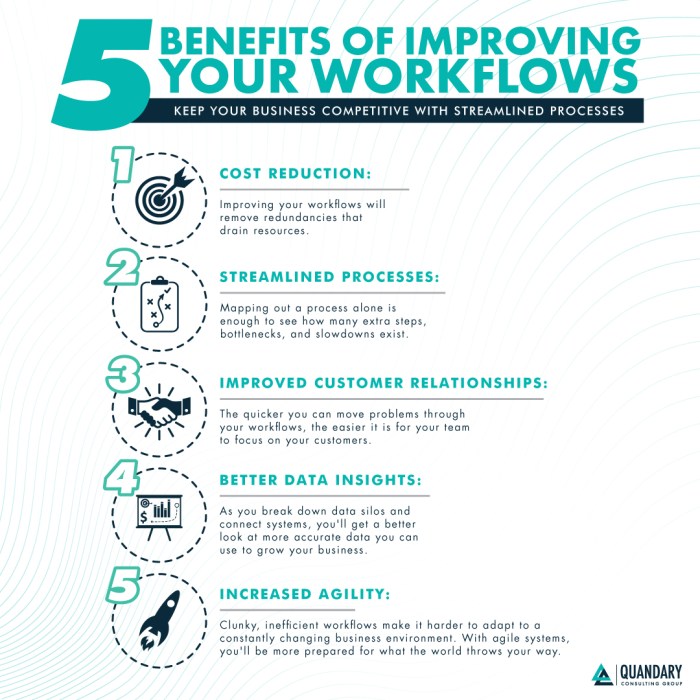
Efficient file management is crucial for a smooth video editing workflow, especially on large projects. A well-organized system saves time, prevents errors, and simplifies collaboration. This section Artikels best practices for naming conventions, folder structures, and media storage, as well as strategies for using proxy files and implementing robust backup systems.
File Organization and Naming Conventions
A clear and consistent file structure is paramount for large video projects. This involves establishing a logical hierarchy of folders and implementing a standardized naming convention for all your media files. This makes locating specific clips quick and easy, avoiding the frustration of searching through countless unnamed files. The following table illustrates effective naming conventions:
| Original Filename | Improved Filename | Description |
|---|---|---|
| VID_20231027_1430.MOV | Project_Name_Scene01_Shot03_TakeA.mov | Clear project identification, scene, shot, and take number. |
| IMG_9876.jpg | Project_Name_BRoll_001.jpg | Identifies the project and categorizes the image as B-roll. |
| DSC01234.mp4 | Project_Name_Interview_SubjectA_01.mp4 | Clearly identifies the project, the type of footage (interview), the subject, and the take number. |
Consider using a consistent date format (YYYYMMDD) within your filenames to easily sort files chronologically. Organize your project folders into logical subfolders for different scenes, shots, and types of media (e.g., footage, audio, graphics).
Proxy Workflow Implementation
High-resolution footage can significantly slow down your editing process. Using proxy files—lower-resolution versions of your original media—allows for smoother editing performance without sacrificing the quality of your final output.
Here’s a step-by-step guide on implementing a proxy workflow:
- Generate Proxies: Most NLEs (Non-Linear Editors) offer built-in proxy generation tools. These tools automatically create smaller versions of your source files. Specify the desired resolution and codec for your proxies. A common approach is to use a resolution of around half the original.
- Organize Proxies: Create a dedicated folder for your proxy files, keeping them separate from your original high-resolution footage. Maintain the same naming convention as your original files to avoid confusion.
- Edit with Proxies: Import your proxy files into your NLE and edit your project using these smaller files. The editing process will be significantly faster and smoother.
- Render with Originals: Once you’ve finalized your edit, render your project using the original high-resolution files. Your NLE will automatically link the edits made with the proxies to the corresponding high-resolution footage.
Using proxies offers the advantage of faster editing and smoother playback, particularly beneficial for projects with extensive high-resolution footage. However, it requires additional storage space for the proxy files and adds a step to the workflow (generating and managing proxies).
Video Project Backup Strategies
Data loss is a significant risk in video editing. Implementing a robust backup strategy is essential to protect your work. This involves using multiple backup methods to mitigate the risk of complete data loss from a single point of failure.
Examples of backup strategies include:
- Cloud Storage: Services like Backblaze, Dropbox, Google Drive, and others offer cloud-based storage solutions for automatic backups. Cloud storage provides offsite backups, protecting against physical damage or theft.
- External Hard Drives: Use at least two external hard drives, ideally of different brands and technologies (e.g., one SSD and one HDD), to store copies of your project. Regularly back up your project to both drives.
- RAID Systems: For professionals dealing with extremely large projects and a high risk of data loss, a RAID (Redundant Array of Independent Disks) system can provide data redundancy and fault tolerance. RAID configurations, such as RAID 1 (mirroring) or RAID 5 (striping with parity), offer different levels of data protection.
Regular backups are crucial; consider implementing a daily or even hourly backup schedule for important projects.
Enhancing Your Editing Techniques
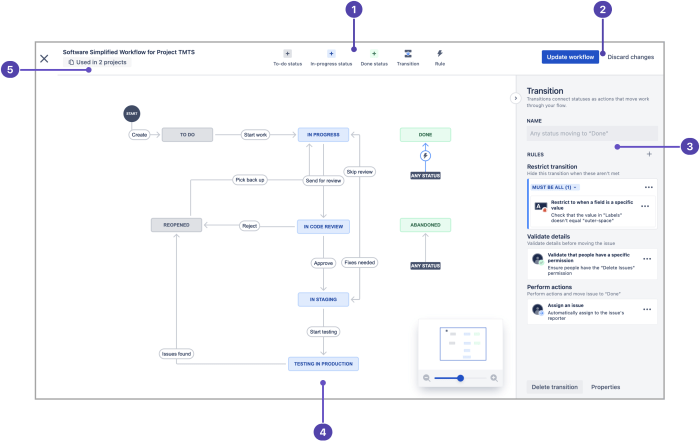
Efficient editing techniques are crucial for streamlining your video production workflow. By implementing strategic methods and avoiding common pitfalls, you can significantly reduce editing time and improve the overall quality of your final product. This section will explore several techniques to help you achieve this.
Mastering efficient editing techniques significantly impacts your overall workflow. Streamlining your process allows for more creative freedom and reduces the time spent on tedious tasks. The following techniques focus on maximizing efficiency without sacrificing quality.
Time-Saving Editing Techniques
Implementing these five time-saving techniques can dramatically improve your editing efficiency, allowing you to focus more on the creative aspects of your project.
- Using keyboard shortcuts: Instead of constantly clicking your mouse, learn and utilize keyboard shortcuts for common actions like cutting, pasting, adding transitions, and adjusting audio levels. For example, in Adobe Premiere Pro, Ctrl+K (Cmd+K on Mac) cuts the clip at the playhead, while Ctrl+X (Cmd+X) cuts and copies the selected clip. This can save countless hours over the course of a project.
- Employing proxies for high-resolution footage: Editing high-resolution video files can be slow. Using proxy files – lower-resolution versions of your original footage – allows for smoother editing and playback during the initial stages of your project. Once you’re happy with the edit, you can switch back to the high-resolution files for rendering. This significantly speeds up the editing process without compromising the final quality.
- Pre-selecting your clips: Before beginning your edit, organize your footage into bins and pre-select the clips you intend to use. This eliminates the need to hunt for specific shots during the editing process. This simple step can save considerable time and improve workflow.
- Using the Razor Tool effectively: The razor tool is your friend! Mastering its use allows for quick and precise cuts, avoiding unnecessary backtracking and adjustments. Learn to use it precisely to avoid accidentally deleting portions of your clip.
- Leveraging the ripple edit tool: The ripple edit tool is a powerful tool for maintaining the overall timeline integrity. It allows you to insert or delete clips without affecting the rest of your timeline. This is especially useful when making minor adjustments or corrections.
Effective Color Grading and Audio Mixing
Color grading and audio mixing are crucial for enhancing video quality. However, these steps shouldn’t significantly extend your editing time. A strategic approach can ensure both high quality and efficiency.
For color grading, utilize pre-sets or LUTs (Look Up Tables) as a starting point. These provide a quick way to establish a mood or style, which can then be fine-tuned to your specific needs. Focus on key adjustments – overall brightness, contrast, and saturation – before moving onto more detailed corrections. For audio, employ noise reduction tools and equalization to achieve a clean and balanced sound. Using pre-made sound effects and music libraries can save time compared to creating everything from scratch.
Common Time-Wasting Video Editing Mistakes
These common mistakes can lead to significant time loss during video editing. Avoiding them is crucial for efficient workflow.
- Poor organization: A disorganized project folder with unsorted footage leads to wasted time searching for specific clips. Establish a clear folder structure from the outset, separating footage by date, scene, or any other relevant criteria.
- Lack of planning: Jumping into editing without a clear vision or storyboard can lead to numerous revisions and wasted effort. Create a basic storyboard or shot list beforehand to guide your editing process and ensure a smoother workflow.
- Ignoring the power of templates and presets: Many editing software applications offer templates and presets for common tasks like titles, transitions, and color grading. Using these can significantly reduce the time spent on repetitive tasks.
Final Thoughts
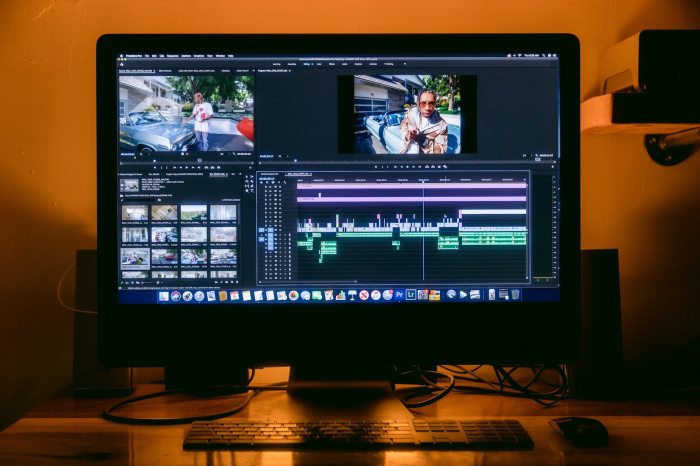
Mastering your video editing workflow is a continuous journey, but even small improvements can significantly impact your productivity and creativity. By implementing the strategies Artikeld—from optimizing your software and file management to refining your editing techniques—you’ll find yourself spending less time troubleshooting and more time crafting compelling videos. Remember that consistency and adapting these techniques to your specific needs are key to long-term success. Embrace the efficiency, and let your creativity shine!