Securing your Linux server is paramount in today’s interconnected world. A robust security posture requires proactive measures, and understanding key command-line tools is essential. This guide delves into eight crucial Linux commands, providing practical strategies to bolster your server’s defenses against common threats. We’ll explore techniques for hardening your system, implementing regular security audits, and establishing best practices for user and group management, all while maintaining a balance between security and usability.
Through practical examples and clear explanations, we will empower you to confidently navigate the complexities of Linux server security. We will cover essential tools like `iptables`, `firewalld`, `sudo`, `ssh-keygen`, `awk`, `sed`, `rsync`, and more, demonstrating how to leverage their capabilities to create a more secure environment. This guide is designed for system administrators and anyone seeking to improve their Linux server’s security profile.
Essential Security Hardening

Securing a Linux server requires a multi-faceted approach. This section details crucial steps to significantly enhance your server’s security posture, focusing on practical implementations of key tools and techniques. Proper configuration of these elements is vital for preventing unauthorized access and mitigating potential vulnerabilities.
Iptables vs. Firewalld: A Comparison
Choosing between `iptables` and `firewalld` depends on your comfort level with command-line interfaces and the complexity of your firewall rules. Both achieve similar goals, but differ significantly in their approach and ease of management.
| Feature | Iptables | Firewalld |
|---|---|---|
| Ease of Use | Steeper learning curve; requires manual configuration of rules using command-line interface. Error-prone for complex setups. | User-friendly; offers a command-line interface and graphical tools (like `firewall-cmd`) for simpler management. More intuitive for complex rulesets. |
| Features | Highly flexible and powerful; allows for granular control over network traffic. Supports advanced features like NAT and stateful inspection. | Provides a robust set of features, including zones, services, and interfaces. Offers good support for common firewall tasks but might lack some advanced `iptables` capabilities. |
| Performance | Generally considered faster for simpler rule sets, but complex configurations can impact performance. | Slightly slower than `iptables` for very simple rules, but the performance difference is usually negligible in most real-world scenarios. Overhead is managed efficiently. |
Sudoers Configuration for Restricted Root Access
Granting root privileges directly is inherently risky. `sudoers` allows for fine-grained control over user privileges, limiting the potential damage from compromised accounts. The `/etc/sudoers` file (edited using `visudo`) defines which users can execute commands as root and which commands they are permitted to run.
| User | Permissions | Example Command |
|---|---|---|
| john | Can only restart Apache | sudo systemctl restart apache2 |
| jane | Can run any command as root, except for those related to network configuration. | sudo (except network-related commands) |
| admin | Full root privileges | sudo |
Note: Incorrect `sudoers` configuration can lock you out of your system. Always use `visudo` to edit the file; it handles synchronization and prevents corruption.
Securing SSH Access with Key-Based Authentication
Password-based SSH authentication is vulnerable to brute-force attacks. Key-based authentication provides a significantly more secure alternative.
Generating keys: Use the command ssh-keygen. You’ll be prompted to specify a file location and optionally a passphrase. This creates a private key (keep this secret!) and a public key.
Transferring the public key: Copy the contents of the public key file (usually `~/.ssh/id_rsa.pub`) and append it to the `~/.ssh/authorized_keys` file on the server. This grants the associated private key access to the server. Alternatively, use ssh-copy-id user@server_ip (if your client supports it) for a simpler transfer.
Disabling password authentication: Edit the `/etc/ssh/sshd_config` file and change PasswordAuthentication to no. Restart the SSH service (e.g., systemctl restart ssh) for the changes to take effect. This prevents login attempts using passwords.
Regular Security Auditing and Log Management

Proactive security auditing and robust log management are crucial for maintaining a secure Linux server. Regularly reviewing system logs allows for the early detection of suspicious activity and potential security breaches, enabling timely intervention and minimizing potential damage. Effective log management also aids in troubleshooting system issues and improving overall system performance.
This section details methods for analyzing system logs to identify suspicious activity, monitoring system resource usage to pinpoint potential vulnerabilities, and implementing a reliable backup procedure for critical system data and configurations.
Suspicious Login Attempt Detection Script
This section presents an `awk` script designed to parse system logs, specifically `/var/log/auth.log`, to identify and report suspicious login attempts. The script searches for failed login attempts from unknown or unusual IP addresses, flagging them for further investigation. This approach helps in proactively identifying potential brute-force attacks or unauthorized access attempts.
#!/usr/bin/awk -f
BEGIN
    FS=" "


    if ($1 ~ /Failed/)
        # Extract IP address and username
        match($0, /from ([0-9.]+)/, ip)
        match($0, /([a-zA-Z0-9_-]+)/, username)
        print strftime("%Y-%m-%d %H:%M:%S"), "Failed login attempt from IP:", ip[1], "User:", username[1] > "suspicious_logins.log"
This script filters lines containing “Failed” in `/var/log/auth.log`, extracts the IP address and username, and writes the information to a file named “suspicious_logins.log” with a timestamp. This file can then be reviewed periodically for suspicious activity.
System Resource Usage Monitoring for Security Vulnerabilities
Consistent monitoring of system resource usage is essential to identify potential security risks associated with resource exhaustion. Resource exhaustion can lead to system instability, denial-of-service conditions, and potentially create opportunities for attackers to exploit vulnerabilities. The following list Artikels key system resources to monitor:
- CPU Usage: High and sustained CPU usage might indicate a malware infection, a denial-of-service attack, or a poorly optimized application consuming excessive resources. Monitoring CPU usage helps identify these issues.
- Memory Usage: High memory usage can lead to system slowdowns and crashes, creating potential security vulnerabilities. Memory leaks or processes consuming excessive memory need investigation.
- Disk I/O: Excessive disk I/O activity might point towards a denial-of-service attack targeting the disk subsystem, or a malicious process performing numerous file operations.
- Network I/O: Unusual spikes in network traffic could signal a malware infection communicating with external servers, or a denial-of-service attack flooding the network interface.
Regular System Backup Procedure
Implementing a reliable backup procedure is crucial for disaster recovery and data protection. This procedure Artikels the steps involved in regularly backing up critical system configurations and data using `rsync`.
This procedure uses `rsync` for its efficiency and ability to resume interrupted transfers. It emphasizes incremental backups to minimize storage space and transfer time. Verification steps are included to ensure data integrity.
#!/bin/bash
# Backup script
BACKUP_DIR="/mnt/backup"
SOURCE_DIR="/etc /home/user" # Replace with your critical directories

# Create backup directory if it doesn't exist
mkdir -p "$BACKUP_DIR"

# Perform incremental rsync backup
rsync -avz --delete --progress "$SOURCE_DIR" "$BACKUP_DIR/$(date +%Y-%m-%d)"

# Verify backup integrity (optional, but recommended)
rsync -avz --check "$BACKUP_DIR/$(date +%Y-%m-%d)" /dev/null

echo "Backup completed successfully."
This script backs up the specified directories to `/mnt/backup`, creating a new directory for each day’s backup. The `–delete` option ensures that deleted files are also removed from the backup, and `–progress` displays the progress of the backup. The final `rsync` command verifies the integrity of the backup by comparing it to an empty file, reporting any inconsistencies.
User and Group Management Best Practices

Effective user and group management is crucial for maintaining the security and stability of your Linux server. By implementing robust practices, you significantly reduce the risk of unauthorized access and system compromise. This involves careful consideration of password security, account management, and granular permission control.
Strong Passwords and Password Policies
Enforcing strong passwords and implementing strict password policies is paramount to preventing unauthorized access. The `passwd` command allows users to change their passwords, while `chage` enables administrators to manage password aging and expiry policies. A strong password is characterized by length (at least 12 characters), complexity (including uppercase and lowercase letters, numbers, and symbols), and uniqueness (avoiding easily guessable patterns or personal information). The `chage` command offers granular control over password expiry, minimum and maximum age, and warning periods before expiry.
For example, to enforce a password policy requiring a minimum length of 12 characters and a maximum age of 90 days, you would use `chage -m 0 -M 90 -W 7 username`. This sets the minimum days before password change to 0, the maximum days to 90, and the warning period to 7 days for the user ‘username’. To change a user’s password, the user would run `passwd username`. Examples of strong passwords include “P@$$wOrd123!” or “MyStr0ngP@sswOrd456”. Weak passwords, such as “password” or “123456”, should be strictly avoided.
User and Group Account Management
The commands `useradd`, `usermod`, `groupadd`, and `groupmod` provide the tools to effectively manage user and group accounts on your system. Efficient account management is essential for controlling access and ensuring system stability. Unnecessary accounts should be promptly removed to minimize potential vulnerabilities.
| Command | Functionality | Example |
|---|---|---|
useradd |
Creates a new user account. | sudo useradd -m -g users -d /home/newuser newuser (Creates user ‘newuser’ with home directory, group ‘users’) |
usermod |
Modifies an existing user account. | sudo usermod -g developers -a -G sudo newuser (Adds ‘newuser’ to ‘developers’ group and ‘sudo’ group) |
groupadd |
Creates a new group. | sudo groupadd developers (Creates group ‘developers’) |
groupmod |
Modifies an existing group. | sudo groupmod -n developers_new developers (Renames group ‘developers’ to ‘developers_new’) |
User Permissions Management
Properly managing user permissions using `chmod` and `chown` is critical for securing your server’s files and directories. This ensures that only authorized users and groups have the necessary access rights, preventing unauthorized modifications or deletions of sensitive data. `chmod` modifies file permissions, while `chown` changes file ownership.
For example, to grant read, write, and execute permissions to the owner, read and execute permissions to the group, and read-only permissions to others for a file named “myfile”, you would use: sudo chmod 754 myfile. To change the owner of a file “myfile” to user “newuser” and group “developers”, you would use: sudo chown newuser:developers myfile. Understanding the octal notation (e.g., 754) for permissions is key to effectively managing access control. Incorrectly configured permissions can lead to significant security vulnerabilities.
Final Review
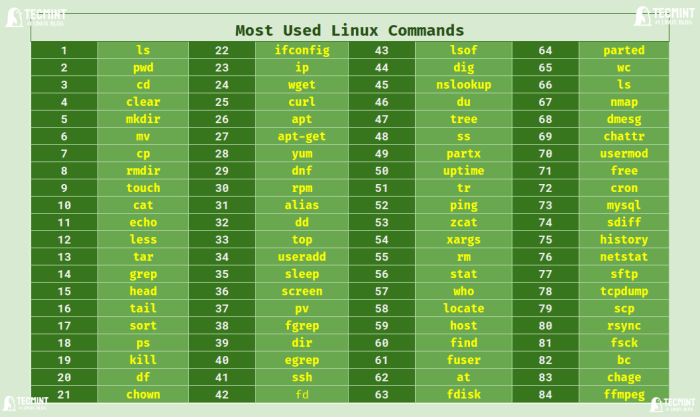
By mastering these eight critical Linux commands, you’ve significantly enhanced your ability to secure your Linux server. Remember, consistent vigilance and regular security audits are key to maintaining a strong defense. Implementing the techniques Artikeld—from hardening your system with firewalls and secure SSH access to diligently monitoring logs and managing user permissions—will create a more resilient and protected environment. Proactive security is not merely a best practice; it’s a necessity in today’s threat landscape.