Running out of phone storage is a frustratingly common problem. Suddenly, that cherished photo of your cat, or that important work document, becomes inaccessible. But fear not! Reclaiming valuable space on your device doesn’t require technical expertise. This guide offers a straightforward, four-step process to optimize your phone’s storage, freeing up space and ensuring smooth operation.
We’ll explore practical techniques for identifying and deleting unnecessary files and apps, optimizing your media storage through compression and cloud services, leveraging built-in system tools, and adjusting key settings to minimize future storage issues. By the end, you’ll have the knowledge and tools to keep your phone running efficiently and your precious memories safe.
Delete Unnecessary Files and Apps
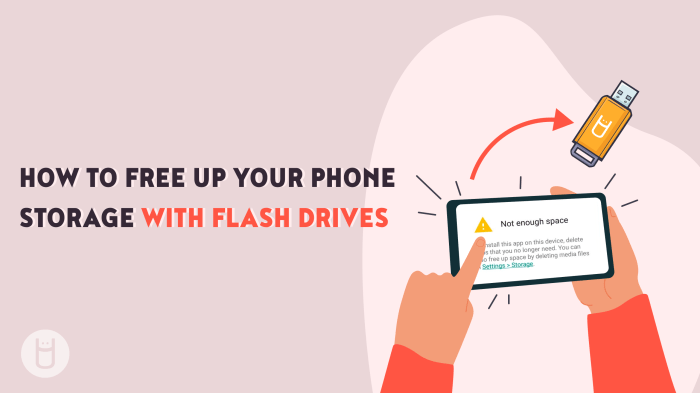
Optimizing your phone’s storage often begins with identifying and removing files and applications you no longer need. This frees up valuable space and improves overall device performance. By systematically deleting unnecessary data and apps, you can significantly enhance your phone’s efficiency and responsiveness.
Several file types are notorious for consuming large amounts of storage. Videos, particularly high-resolution videos, are significant space hogs. Photos, especially those taken with high-megapixel cameras, also contribute substantially. Cached data, temporary files created by apps, accumulates over time and can occupy considerable space. Audio files, especially high-bitrate music, and downloaded documents also contribute to storage consumption.
File Size Estimates
The following table provides estimates of average file sizes. Actual sizes vary based on resolution, compression, and other factors. These are rough guidelines to help you understand the potential storage impact of different file types.
| File Type | Average File Size |
|---|---|
| High-Resolution Photo (12MP) | 5-10 MB |
| High-Resolution Video (1080p, 1 minute) | 100-200 MB |
| High-Quality Audio File (1 minute) | 5-10 MB |
| Document (Word, PDF) | 1-10 MB (variable) |
| App (Average) | 50-200 MB (variable) |
Identifying and Deleting Unused Apps
Unused apps are often easy to overlook but can significantly impact storage. The process for identifying and deleting them varies slightly between Android and iOS.
Android:
- Navigate to your device’s settings.
- Find and select “Apps” or “Applications”.
- Review the list of installed apps. Identify apps you haven’t used recently or no longer need.
- Select the app and tap “Uninstall”.
iOS:
- Long-press on an app icon on your home screen.
- Tap the “X” that appears on the app icon.
- Confirm that you want to delete the app.
Manually Clearing App Cache and Data
Clearing an app’s cache and data can reclaim storage space. Cache is temporary data used to speed up app loading; data includes user settings and saved information. Clearing the cache usually doesn’t delete user data, but clearing data will.
Example 1: Clearing Cache and Data for Instagram (Android): A screenshot would show the Android settings menu, with “Apps” selected. Then, a screenshot of the Instagram app details would show options for “Storage,” “Clear Cache,” and “Clear Data.” The user would select the appropriate options.
Example 2: Clearing Cache and Data for Facebook (iOS): A screenshot would show the iOS settings menu, with “General” and then “iPhone Storage” selected. Then a screenshot of the Facebook app details showing options to “Offload App” (which removes the app but preserves data) and “Delete App” would be displayed. The user can choose to offload to save space without deleting data.
Managing Photos and Videos
Photos and videos are major storage consumers. Regularly reviewing and deleting unwanted media is crucial. Consider using cloud storage services like Google Photos, iCloud, or Dropbox to store your photos and videos online, freeing up space on your device. Alternatively, you can transfer files to a computer for backup and storage.
Optimize Media Storage

Managing media files—photos, videos—is a significant contributor to phone storage issues. Optimizing this area can free up considerable space and improve device performance. This section details strategies for effectively managing your media library.
Cloud Storage Services for Photos and Videos
Cloud storage offers a convenient solution for offloading media from your phone. Services like Google Photos, iCloud, and Dropbox provide varying amounts of storage at different price points. This allows you to access your photos and videos from multiple devices while freeing up valuable space on your phone. The choice depends on your storage needs and budget.
| Service | Free Storage | Paid Plans (Example) |
|---|---|---|
| Google Photos | High-quality (compressed) photos and videos; limited original quality storage | Various plans offering increased storage (e.g., 100GB, 200GB, etc.) at a monthly cost. |
| iCloud | 5GB | 50GB, 200GB, and 2TB plans at a monthly cost. |
| Dropbox | 2GB | Various plans offering increased storage (e.g., 2TB, etc.) at a monthly cost. |
Image and Video Compression Techniques
Compressing images and videos reduces their file size without drastically impacting quality. Several methods and tools are available for this purpose. For images, many online tools and phone apps allow for lossy compression, reducing file size by discarding less noticeable data. For videos, similar tools and software exist, offering different compression levels. Examples include apps such as “Compressor” for iOS and Android and online tools such as TinyPNG for images. Experimenting with different compression levels will help you find the balance between file size and quality.
High-Resolution vs. Low-Resolution Media
High-resolution media files (e.g., 4K video, high-megapixel photos) offer superior detail and clarity but consume significantly more storage space compared to low-resolution counterparts (e.g., 720p video, lower-megapixel photos). The table below illustrates this difference.
| Resolution | File Size (Example) | Storage Impact |
|---|---|---|
| High-Resolution (4K Video) | Several GB per minute | Consumes significant storage; suitable for archiving important moments. |
| Low-Resolution (720p Video) | Several hundred MB per minute | More storage-efficient; suitable for everyday videos. |
| High-Resolution (12MP Photo) | Several MB per photo | Consumes more storage; better for printing or large displays. |
| Low-Resolution (2MP Photo) | Several hundred KB per photo | More storage-efficient; suitable for sharing online. |
Transferring Media Files from Phone to Computer or External Hard Drive
Transferring media files from your phone to a computer or external hard drive provides an effective way to free up phone storage. This can be done using either wired or wireless methods. Wired transfers, using a USB cable, generally offer faster transfer speeds and greater reliability. Wireless transfers, using services like AirDrop (Apple) or file-sharing apps, provide convenience but may be slower and potentially less reliable depending on network conditions. Both methods are equally valid, the best choice depending on your preferences and available tools.
Utilize System Settings and Tools

Your phone’s operating system offers powerful built-in tools to manage storage. Learning to use these effectively can significantly improve your device’s performance and free up valuable space without needing third-party apps. This section will guide you through leveraging these resources.
Both Android and iOS provide native storage management features. These tools offer insights into your storage usage, identifying the largest space consumers, and provide options for removing unnecessary files and apps. They often include automated cleanup options and suggestions for optimizing your storage.
Android Storage Management Tools
Android devices typically include a built-in “Storage” setting within the system settings menu. Accessing this section reveals a detailed breakdown of storage usage, categorized by app, media files (images, videos, audio), and system files. A visual representation, often a pie chart, displays the proportion of storage used by each category. Within this section, you can identify large apps or files consuming significant storage and selectively uninstall or delete them. A screenshot would show a pie chart illustrating storage usage, with segments representing apps, photos, videos, etc., and a list of apps ranked by storage consumption. The chart would visually emphasize the proportion of space each category occupies. The list would show app names, sizes, and options to uninstall or clear data.
iOS Storage Management Tools
On iOS devices, the “iPhone Storage” (or similar) setting within the system settings provides a similar overview. This section presents a list of apps sorted by storage consumption. It also displays the size of each app and provides options for offloading or deleting them. A visual representation of storage usage, similar to the Android example, may also be present. A screenshot would show a list of apps ordered by storage use, displaying app icons, names, sizes, and options such as “Offload App” or “Delete App.”
Disabling Automatic Downloads
Preventing automatic downloads of media files and apps is crucial for managing storage. On Android, this usually involves navigating to the app’s settings and disabling automatic downloads for photos, videos, or updates. Similarly, on iOS, you can disable automatic downloads for apps, updates, and media files within the App Store and Photos settings. Disabling these features requires navigating to individual app settings or the general system settings related to downloads.
Offloading Versus Uninstalling Apps
Offloading an app removes the app’s data, but retains its icon and configuration data. Reinstalling it restores your data from iCloud or Google Drive, preserving your settings and progress. Uninstalling an app completely removes it and all its associated data. This action requires re-downloading and re-configuring the app if you wish to use it again.
| Feature | Offloading | Uninstalling |
|---|---|---|
| App Data Removal | Removed | Removed |
| App Removal | Partially Removed (Icon and configuration retained) | Completely Removed |
| Reinstallation | Quick, data restored from cloud | Requires re-download and reconfiguration |
| Storage Savings | Significant | Significant |
System Settings for Storage Optimization
Several system settings can contribute to reduced storage usage. Clearing your browsing history and cookies, removing cached data from apps, and deleting temporary files are effective strategies. Disabling unnecessary location services for apps that don’t require them can also help reduce storage. Regularly reviewing your downloaded files and deleting unnecessary documents or videos also helps to maintain storage efficiency.
Final Thoughts

Optimizing your phone’s storage is a proactive approach to maintaining its performance and ensuring you have ample space for what matters most. By following these four simple steps – deleting unnecessary files and apps, optimizing your media, utilizing system tools, and adjusting settings – you can significantly increase available storage and prevent future frustrations. Remember, regular maintenance is key to a healthy and efficient mobile experience. Embrace these strategies, and enjoy a clutter-free, high-performing phone.