Efficiently transferring files between devices is crucial in today’s interconnected world. Whether you’re moving large files between computers, backing up data to external drives, or sharing documents with mobile devices, the speed and reliability of your transfer methods significantly impact productivity. This guide explores seven proven solutions to optimize your file transfer process, addressing various scenarios and technological limitations.
We’ll delve into utilizing cloud storage services, leveraging local network capabilities, and exploring the advantages and disadvantages of external storage options. By understanding the strengths and weaknesses of each method – considering factors such as speed, security, cost, and portability – you can select the most appropriate strategy for your specific needs and significantly improve your file transfer efficiency.
Utilizing Cloud Storage for Efficient Transfers

Cloud storage services offer a convenient and increasingly popular method for transferring files between devices. These services, such as Dropbox, Google Drive, and OneDrive, provide centralized storage accessible from various platforms, streamlining the file transfer process and eliminating the need for physical media or complex network configurations. However, understanding their advantages and limitations is crucial for optimal usage.
Cloud storage offers several key benefits. It simplifies file sharing, allowing for easy collaboration and access from anywhere with an internet connection. Automatic synchronization ensures that files are consistently updated across all linked devices. Furthermore, cloud storage often provides version history, enabling the recovery of previous file versions if needed. However, drawbacks exist. Dependence on internet connectivity is paramount; without a reliable connection, access and synchronization are hindered. Security concerns, while generally mitigated by robust encryption, remain a factor, and cost can become significant for users requiring large storage capacities.
Cloud Storage Service Comparison
The following table compares three popular cloud storage services based on speed, security features, and cost. Note that speed is highly dependent on internet connection and server location, while cost varies based on storage needs and subscription plans. Security features are constantly evolving, so it’s advisable to check the latest information directly from the service provider.
| Service | Speed | Security Features | Cost |
|---|---|---|---|
| Dropbox | Generally fast, varies by location and network conditions. | End-to-end encryption (for paid plans), two-factor authentication, account recovery options. | Free plan with limited storage; paid plans offer increased storage and features. |
| Google Drive | Generally fast, leveraging Google’s extensive infrastructure. | Encryption at rest and in transit, two-factor authentication, robust account security measures. | Free plan with limited storage; paid plans (Google One) offer increased storage and other benefits. |
| OneDrive | Speed comparable to other services, influenced by network and server proximity. | File encryption, two-factor authentication, version history, ransomware detection. | Free plan with limited storage; integrated with Microsoft 365 subscriptions for larger storage capacities. |
Configuring Automatic File Syncing
Setting up automatic file syncing varies slightly depending on the chosen service. Generally, it involves installing the respective desktop application and selecting the folders you wish to synchronize. The service will then automatically upload changes to the cloud and download updates to your devices. Most services provide clear instructions within their applications, guiding users through the setup process. For example, in Google Drive, you can select specific folders to sync to your computer, ensuring only necessary files consume local storage.
Transferring Large Files via Cloud Storage
Transferring large files via cloud storage requires awareness of potential limitations. File size restrictions may apply, particularly with free plans. Furthermore, upload and download speeds are heavily influenced by internet connection speed. For exceptionally large files, consider compressing them before uploading to reduce transfer time and storage space. If a file exceeds the upload limit, breaking it into smaller parts, uploading them individually, and then reassembling them on the receiving end might be necessary. This process can be time-consuming but ensures successful transfer.
Workflow: Desktop to Mobile File Transfer
Consider a scenario where a user wants to transfer a presentation file (a large PowerPoint file) from their desktop to their mobile device.
1. Upload: The user opens the cloud storage application (e.g., Google Drive) on their desktop and uploads the presentation file to their cloud storage account.
2. Synchronization: The cloud service automatically synchronizes the file across all linked devices, including the user’s mobile device.
3. Access: The user opens the cloud storage application on their mobile device and accesses the uploaded presentation file. The file is available offline if the “offline access” feature is enabled.
4. Download (Optional): The user can choose to download the file to their mobile device’s local storage for offline use.
Leveraging Local Network Transfer Methods
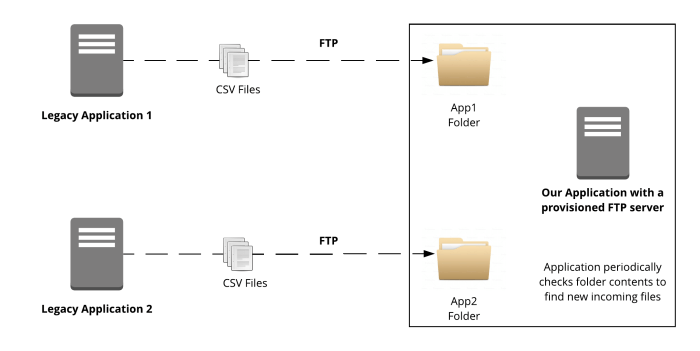
Transferring files within your local network offers significant speed advantages over internet-based methods. By bypassing the complexities and potential bottlenecks of the internet, you can move large files quickly and reliably. This section explores various local network transfer methods, their strengths, and how to optimize them for maximum efficiency.
Comparison of Local Network Transfer Methods
Different methods exist for transferring files within a local network, each with its own speed, range, and security characteristics. Choosing the right method depends on your specific needs and the devices involved.
| Method | Speed | Range | Security |
|---|---|---|---|
| Ethernet | 1 Gbps (Gigabit Ethernet) to 10 Gbps (10 Gigabit Ethernet) and beyond | Limited by cable length (hundreds of meters) | Generally secure within a controlled network; susceptible to physical tapping if not properly secured. |
| Wi-Fi | Varies greatly depending on standard (802.11ac, 802.11ax/Wi-Fi 6, etc.), router capabilities, and interference; generally ranging from tens of Mbps to several Gbps. | Varies greatly depending on router power and environmental factors; typically up to a few hundred meters indoors. | Security depends on encryption protocols used (WPA2, WPA3); susceptible to eavesdropping if not properly secured. |
| Bluetooth | Relatively slow; typically a few Mbps | Short range; usually a few meters. | Security depends on pairing and encryption methods; generally less secure than Ethernet or Wi-Fi. |
Optimizing Wi-Fi Network Settings for Faster Transfers
Optimizing your Wi-Fi network is crucial for achieving the best possible transfer speeds. Several factors contribute to Wi-Fi performance. For example, using the 5 GHz band instead of 2.4 GHz generally provides higher speeds, although range can be reduced. Minimizing interference from other devices operating on the same frequency, selecting a less congested Wi-Fi channel, and ensuring your router’s firmware is up-to-date are all essential steps. A strong signal strength, as indicated by your device’s signal bars, is also vital. Consider upgrading to a newer Wi-Fi standard (like Wi-Fi 6 or Wi-Fi 6E) for significantly faster speeds and improved efficiency if feasible.
Using SMB/CIFS and FTP for Local Network File Transfers
SMB/CIFS (Server Message Block/Common Internet File System) and FTP (File Transfer Protocol) are established protocols for sharing files over a network. SMB/CIFS is widely used in Windows environments, providing a seamless way to access shared folders on other computers. FTP is more versatile, supporting various operating systems and offering both upload and download capabilities, often used for transferring files to and from servers. For enhanced security, consider using SFTP (SSH File Transfer Protocol), a secure variant of FTP.
Setting Up a Home Server for Efficient File Sharing
A home server can centralize file storage and simplify sharing between devices. Several options exist, ranging from repurposing an old computer to using a dedicated network-attached storage (NAS) device. A NAS device provides dedicated hardware optimized for file sharing and often includes features like RAID (Redundant Array of Independent Disks) for data redundancy and backup. Setting up a home server involves installing appropriate server software (e.g., Samba for SMB/CIFS, an FTP server) and configuring network settings to allow access from other devices. This creates a central repository for files accessible from all devices on your local network, improving organization and simplifying file transfer.
Exploring External Storage and Transfer Options
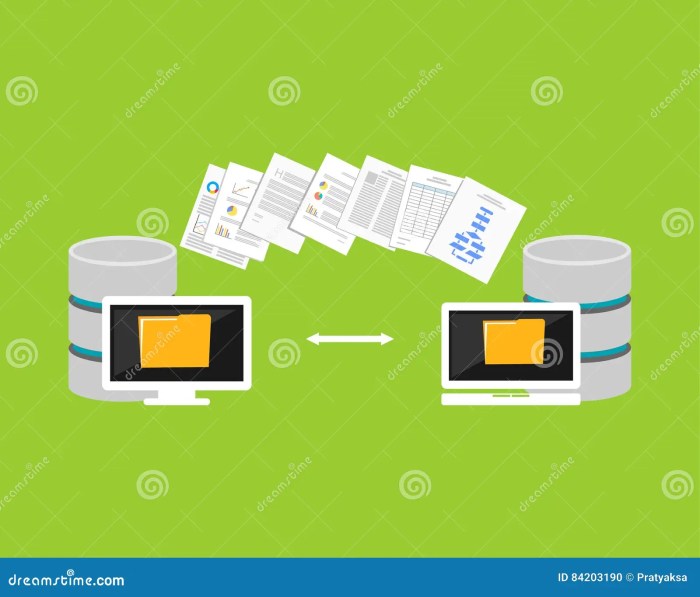
External storage devices offer a readily available and often cost-effective solution for transferring large files between devices, bypassing the limitations of network speeds or cloud storage dependencies. This method is particularly useful for transferring files that are too large for practical email transfer or for situations where a reliable internet connection isn’t available. However, it’s crucial to understand the advantages and disadvantages of each type of external storage before selecting the most appropriate method.
Several factors influence the efficiency and practicality of file transfers using external storage. Choosing the right device and understanding the transfer process is key to a smooth and efficient file transfer experience.
External Storage Device Comparison
The choice between external hard drives, USB flash drives, and SD cards depends heavily on the size of the files being transferred, the desired portability, and the level of data security required. Each option presents a unique balance of pros and cons.
- External Hard Drives:
- Pros: High storage capacity, relatively fast transfer speeds (depending on the interface), durable for frequent use.
- Cons: Less portable than flash drives, more susceptible to physical damage, potentially higher cost for equivalent storage.
- USB Flash Drives:
- Pros: Highly portable, relatively inexpensive for smaller storage capacities, widely compatible.
- Cons: Limited storage capacity compared to hard drives, slower transfer speeds than hard drives, more prone to data loss if mishandled.
- SD Cards:
- Pros: Compact and lightweight, inexpensive for smaller capacities, commonly used in cameras and other devices.
- Cons: Relatively slow transfer speeds, susceptible to data corruption, limited storage capacity compared to hard drives.
Factors Affecting Transfer Speeds
Several factors significantly influence the speed of file transfers using external storage devices. Understanding these factors can help optimize the process and reduce transfer times.
- Interface Type: USB 3.0 and Thunderbolt offer significantly faster transfer speeds than USB 2.0. Using the fastest available interface on both the source and destination devices is crucial.
- File System: Different file systems (e.g., NTFS, exFAT, FAT32) have varying performance characteristics. NTFS generally offers better performance for larger files on Windows systems, while exFAT is often preferred for cross-platform compatibility. FAT32 has limitations on individual file size.
- Device Performance: The internal read/write speed of the external storage device itself is a key determinant of transfer speed. Higher-quality drives will generally offer faster transfer rates.
- Data Size and Type: Transferring large files or files that are highly compressed will naturally take longer than transferring smaller, uncompressed files.
Comparison of File Transfer Methods Using External Storage
A comparative analysis highlights the trade-offs involved in choosing a particular method for file transfer using external storage. Speed, portability, and data security are key considerations.
| Method | Speed | Portability | Data Security |
|---|---|---|---|
| External Hard Drive (USB 3.0) | High | Moderate | Moderate (depends on encryption) |
| USB Flash Drive (USB 3.0) | Medium | High | Low (prone to physical loss) |
| SD Card (SD Card Reader) | Low | High | Low (prone to physical loss and data corruption) |
Backing Up and Transferring Files to an External Hard Drive
This step-by-step guide details the process of backing up important files to an external hard drive and subsequently transferring them to another device.
- Connect the external hard drive to your source device (computer or other device with a compatible port).
- Identify the files you wish to back up. Select all the necessary files and folders.
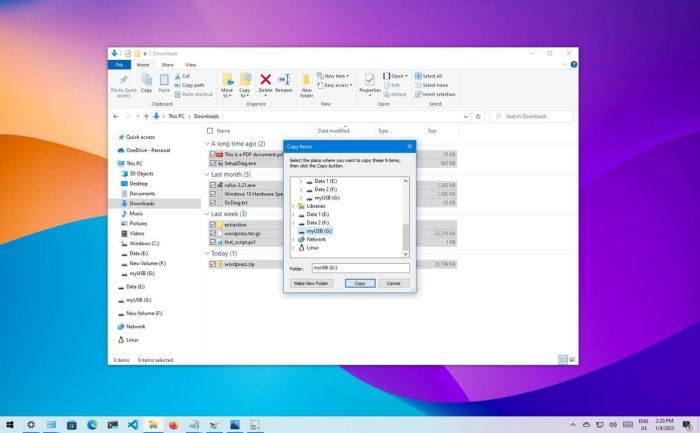
- Copy the selected files to the external hard drive. You can use the operating system’s built-in file copy function or a dedicated backup software for more advanced features.
- Verify the backup by checking if all the files and folders have been copied correctly.
- Disconnect the external hard drive safely from the source device. Follow the operating system’s instructions to safely eject the device.
- Connect the external hard drive to the destination device.
- Copy the backed-up files from the external hard drive to the destination device.
- Verify the transfer by checking if all the files and folders have been copied correctly to the destination device.
Outcome Summary
Optimizing file transfers involves a strategic approach, tailoring your method to the specific circumstances. Whether you choose the convenience of cloud storage, the speed of a local network, or the portability of external drives, understanding the nuances of each solution empowers you to make informed decisions. By leveraging the techniques and insights provided, you can streamline your workflow and significantly reduce the time and effort spent transferring files between your devices, boosting both efficiency and productivity.