Dual-booting offers the flexibility of using multiple operating systems, but juggling them can sometimes lead to performance hiccups. A sluggish boot process or resource conflicts can quickly turn a convenient setup into a frustrating experience. This guide explores seven effective strategies to optimize your dual-boot system, ensuring a smooth and efficient workflow regardless of which OS you choose.
We’ll delve into techniques for fine-tuning your bootloader, optimizing disk I/O, and managing resource allocation between your operating systems. By addressing these key areas, you can significantly improve boot times, enhance overall system responsiveness, and prevent performance bottlenecks that often plague dual-boot setups. Whether you’re a seasoned tech enthusiast or a relatively new user, these practical tips will empower you to maximize the potential of your dual-boot configuration.
Optimizing Bootloader and Boot Process
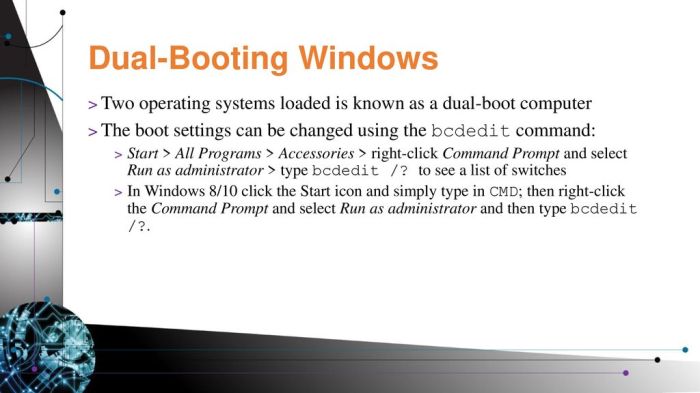
A dual-boot system’s overall performance hinges significantly on the efficiency of its bootloader and the speed of the boot process. A sluggish bootloader can add considerable seconds to your boot time, impacting your overall user experience. Optimizing these aspects can lead to noticeable improvements in system responsiveness.
GRUB Configuration and Boot Time
The GRUB (GRand Unified Bootloader) is a common bootloader for Linux systems, and its configuration directly affects dual-boot performance. Inefficient GRUB settings can lead to longer boot times. For instance, unnecessary timeout values or a large number of entries in the GRUB menu can slow down the boot process. Conversely, optimizing GRUB can significantly reduce boot times. For example, reducing the timeout value from the default 5 seconds to 2 seconds will immediately shorten the time the system spends waiting before automatically booting into your default operating system. Similarly, removing unused operating system entries from the GRUB menu streamlines the boot process.
Reducing Boot Process Time
Minimizing the time spent in the boot process involves disabling unnecessary startup services and applications in both operating systems. In Windows, this can be achieved through the System Configuration utility (msconfig), where you can selectively disable non-essential services and startup programs. On Linux distributions, tools like systemd-analyze can help identify and disable services that are not needed during boot. A comparison of techniques reveals that selectively disabling services is generally more effective than using aggressive methods like disabling all non-essential services at once, as this could lead to system instability. A more targeted approach, focusing on services that significantly impact boot time, is recommended.
Step-by-Step Guide to Configuring a Fast Bootloader
Below is a step-by-step guide for configuring a fast and efficient bootloader, focusing on GRUB. This guide assumes basic familiarity with the command line. Always back up your system before making significant changes to the bootloader configuration.
| Step | Action | Description | Potential Issues |
|---|---|---|---|
| 1 | Access GRUB Configuration File | Locate and open the GRUB configuration file, typically found at `/etc/grub.d/40_custom` or a similar location depending on your Linux distribution. | Incorrect file location or insufficient permissions. |
| 2 | Modify Timeout Value | Reduce the `GRUB_TIMEOUT` value to a lower number (e.g., 2 seconds). This reduces the time GRUB waits before automatically booting the default OS. | Setting the timeout too low might prevent you from selecting a different OS. |
| 3 | Remove Unnecessary Entries | Remove any obsolete or unused operating system entries from the GRUB menu. This simplifies the menu and speeds up the selection process. | Accidentally removing the entry for your desired operating system. |
| 4 | Update GRUB | After making changes, update GRUB using the command `sudo update-grub`. This applies the changes to the bootloader. | Errors during the update process, requiring manual intervention. |
Managing Disk I/O and Partitioning

Efficient disk I/O and a well-structured partitioning scheme are crucial for a responsive dual-boot system. Improper configuration can lead to sluggish boot times and overall performance degradation. This section explores the impact of file system choices and partitioning methods on your dual-boot experience, and offers strategies for optimizing disk I/O.
File System Selection for Optimal Performance
Choosing the right file system for each operating system significantly impacts performance. NTFS, commonly used in Windows, and ext4, prevalent in Linux distributions, have different strengths and weaknesses. The selection should be based on the operating system’s requirements and performance characteristics.
- NTFS offers good performance for general-purpose file access in Windows, but may not be as efficient as ext4 for certain tasks like large file transfers or random access.
- Ext4, designed for Linux, generally provides superior performance for many file operations compared to NTFS when used with a Linux distribution. It often excels in scenarios involving many small files and metadata operations.
- Using different file systems allows each OS to leverage its optimized file system, maximizing performance within its respective environment. Mixing file systems is generally not recommended unless specific file sharing needs require it, as this might necessitate extra steps for accessing files across operating systems.
Partitioning Schemes: MBR vs. GPT
The Master Boot Record (MBR) and GUID Partition Table (GPT) are two different partitioning schemes that define how your hard drive is organized. Their impact on boot times and system responsiveness differs significantly.
- MBR is an older standard, limited to supporting up to four primary partitions. This limitation can complicate dual-boot setups, especially if you need multiple partitions for each OS or additional data storage. Boot times are generally comparable to GPT for smaller drives but can become slower as the number of partitions increase.
- GPT, a more modern standard, overcomes the partition limitations of MBR, allowing for many more partitions. This flexibility makes it more suitable for complex dual-boot setups with multiple partitions per operating system. GPT also offers improved data integrity and faster boot times compared to MBR, especially on larger hard drives.
Optimizing Disk I/O with OS-Specific Tools
Regular maintenance is crucial to keep your disks performing optimally. Each operating system provides tools to manage and optimize disk I/O.
- Windows Disk Defragmenter: A screenshot of the Windows Disk Defragmenter would show a graphical interface listing drives, their fragmentation status (percentage fragmented), and an option to initiate defragmentation. The process involves rearranging fragmented files on the hard drive to improve access times. This is particularly beneficial for HDDs but has minimal impact on SSDs.
- Linux
fsck: The Linuxfsck(file system check) utility would be illustrated by a terminal screenshot showing a command such assudo fsck -y /dev/sdaX(where X represents the partition number). This command checks and repairs any errors on the specified file system, ensuring data integrity and optimal performance. It’s crucial to run this command only when the file system is unmounted to prevent data corruption.
Resource Allocation and Management

Efficient resource allocation is crucial for optimal dual-boot performance. Competing operating systems can lead to bottlenecks if not managed carefully, impacting responsiveness and overall system speed. Understanding resource conflicts and implementing effective management strategies are key to maximizing your dual-boot setup’s potential.
Resource conflicts between Windows and Linux primarily involve memory (RAM) and CPU usage. Both operating systems will attempt to utilize available resources, potentially leading to contention. For instance, a memory-intensive application running on one OS might leave insufficient RAM for the other, causing slowdowns or crashes. Similarly, CPU-bound tasks in one OS can reduce the processing power available to the other, impacting performance across the board. Efficient allocation involves strategies that prioritize critical tasks and prevent resource starvation for either OS. This often necessitates adjusting settings within each operating system to ensure fair resource sharing.
Identifying and Resolving Resource Conflicts
Potential resource conflicts arise from applications, services, and the operating systems themselves. Windows, by default, tends to consume more RAM and CPU resources than Linux. This difference can lead to performance issues if not managed appropriately. For example, if Windows is running numerous background processes while Linux is trying to perform a CPU-intensive task, performance in Linux could suffer. Careful monitoring of resource usage using system monitoring tools (Task Manager for Windows, System Monitor for Linux) is vital for identifying these bottlenecks. Strategies for efficient allocation include limiting the number of simultaneously running applications, adjusting the priority of processes, and using resource-intensive applications sparingly. In some cases, it might be necessary to increase the amount of RAM in the system to alleviate memory pressure.
Managing Background Processes and Services
Background processes and services consume system resources even when not actively used. Many are essential for system functionality, but others are unnecessary or can be deferred until needed. Disabling unnecessary background tasks improves overall system responsiveness and frees up resources for foreground applications. This is especially important in a dual-boot environment, where resources are already shared between operating systems.
- Windows: Open Task Manager (Ctrl+Shift+Esc), navigate to the “Processes” tab, and identify resource-intensive processes. Right-click on unnecessary processes and select “End task.” For services, open the Services application (services.msc), identify non-essential services, and set their startup type to “Disabled” or “Manual.”
- Linux: Use the system monitor (e.g., ‘top’ or ‘htop’ in the terminal) to identify resource-intensive processes. Use the ‘kill’ command to terminate unnecessary processes. For services, use the systemd service manager (systemctl). To disable a service, use the command
sudo systemctl disable. Remember to replacewith the actual name of the service.
Resource Optimization Strategies
The following table Artikels methods for optimizing resource usage in Windows and Linux.
| Resource | Windows Management Tool | Linux Management Tool | Optimization Strategy |
|---|---|---|---|
| Memory (RAM) | Task Manager, Resource Monitor | top, htop, free | Close unnecessary applications, disable unnecessary startup programs, increase RAM if needed. Use swap space sparingly in Linux. |
| CPU | Task Manager, Resource Monitor | top, htop, mpstat | Limit the number of concurrently running applications, prioritize essential tasks, consider CPU throttling (if supported by your hardware). |
| Disk I/O | Resource Monitor, Disk Cleanup | iotop, iotop, df | Defragment hard drives (Windows), optimize file system (Linux), regularly clean up temporary files, consider using an SSD. |
| Network | Task Manager, Network Monitor | iftop, tcpdump | Limit background network activity, disable unnecessary network services, use a wired connection for better stability. |
Ending Remarks
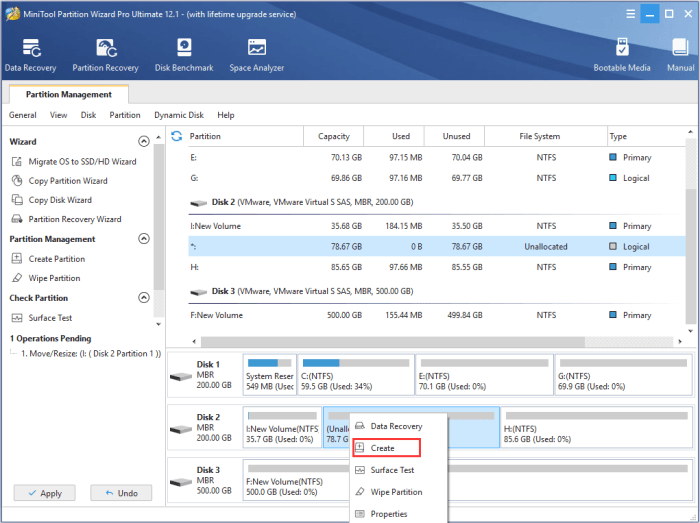
Optimizing a dual-boot system involves a multifaceted approach that encompasses bootloader configuration, disk management, and resource allocation. By strategically addressing these areas, as Artikeld in this guide, you can achieve a significant boost in performance. From faster boot times to smoother multitasking, the improvements will enhance your overall computing experience, making your dual-boot setup a truly efficient and enjoyable one. Remember to carefully consider your specific system configuration and adapt these strategies accordingly for optimal results.