Lagging in your favorite online game can be incredibly frustrating. A poorly configured router can be the culprit, significantly impacting your ping and overall gaming experience. This guide provides six straightforward steps to optimize your home network for seamless, lag-free gaming, ensuring you maintain a competitive edge. We’ll explore key router settings, network band selection, and troubleshooting techniques to help you conquer online opponents.
From understanding your router’s capabilities and choosing the right network band (2.4 GHz vs. 5 GHz) to mastering Quality of Service (QoS) settings, we will cover all the essentials. We will also delve into wired versus wireless connections, highlighting the advantages and disadvantages of each, and offer solutions for common network problems. By following these steps, you can transform your gaming experience from frustrating lag to smooth, responsive gameplay.
Understanding Your Router and Network
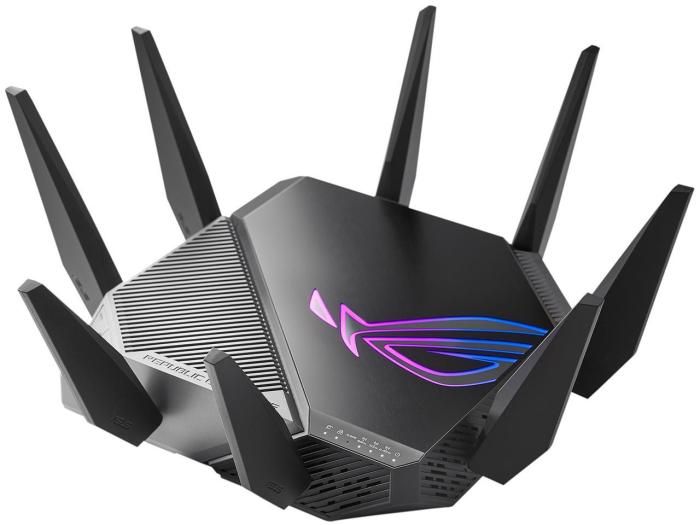
Optimizing your router for gaming involves understanding its capabilities and how your network operates. A well-configured router is crucial for minimizing latency and maximizing throughput, resulting in a smoother and more responsive gaming experience. This section will cover key router features, the impact of different Wi-Fi bands, and the importance of Quality of Service (QoS) settings.
Understanding the capabilities of your router and its interaction with your network is the first step in optimizing your gaming experience. Key features directly impacting performance include processing power, memory, and the number of antennas. A more powerful router with better processing capabilities can handle multiple concurrent connections and prioritize gaming traffic more efficiently. Similarly, a router with more memory can buffer data more effectively, reducing packet loss and improving stability. The number and quality of antennas directly affect signal strength and range, particularly crucial for wireless gaming.
Network Band Impact on Latency and Speed
The choice between the 2.4 GHz and 5 GHz Wi-Fi bands significantly impacts your gaming performance. The 2.4 GHz band offers better range and penetration through walls, but suffers from congestion due to its widespread use by other devices like microwaves and Bluetooth devices. This congestion leads to higher latency and lower speeds, resulting in noticeable lag during gameplay. The 5 GHz band, while offering faster speeds and lower latency, has a shorter range and is more susceptible to interference from physical obstacles. For optimal gaming, connecting to the 5 GHz band is generally recommended if your device and router support it and you are within range. If range is an issue, the 2.4 GHz band may be a necessary compromise, but you should prioritize minimizing interference.
Quality of Service (QoS) Settings for Gaming Traffic Prioritization
Quality of Service (QoS) is a crucial setting that allows you to prioritize specific types of network traffic. By prioritizing gaming traffic, you ensure that your games receive sufficient bandwidth even when other devices on your network are consuming significant resources. This minimizes lag and packet loss, crucial for a smooth online gaming experience. Several methods exist for implementing QoS, each with its own advantages and disadvantages.
| Method | Description | Advantages | Disadvantages |
|---|---|---|---|
| Bandwidth Allocation | Manually assigning a specific bandwidth percentage to gaming traffic. | Simple to understand and implement; provides predictable bandwidth allocation. | Requires manual configuration; may not adapt well to changing network conditions. |
| Weighted Fair Queuing (WFQ) | Distributes bandwidth proportionally based on pre-defined weights assigned to different traffic types. | Provides a fair distribution of bandwidth across different applications; relatively easy to configure. | Can be less effective in heavily congested networks; requires some understanding of network traffic prioritization. |
| DiffServ (Differentiated Services) | Uses different priority levels to classify and prioritize network traffic. | Highly effective in prioritizing critical traffic; can handle complex network scenarios. | Complex to configure and requires advanced networking knowledge. |
| Application-Based QoS | Prioritizes traffic based on the application being used (e.g., automatically prioritizing gaming applications). | Automatic prioritization; user-friendly. | May not be compatible with all routers or applications; potential for misidentification of traffic. |
Optimizing Router Settings for Gaming
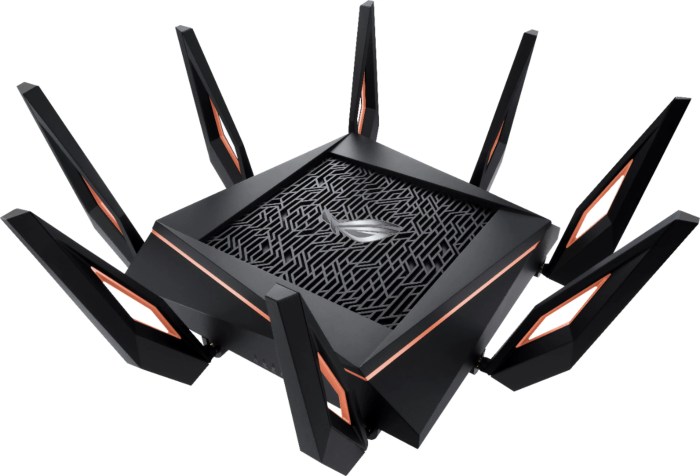
Accessing and modifying your router’s advanced settings is crucial for optimizing your gaming experience. This involves navigating your router’s interface, usually accessed through a web browser by typing your router’s IP address (often 192.168.1.1 or 192.168.0.1) into the address bar. You’ll need your router’s username and password, which can be found in your router’s documentation or on a sticker on the device itself. Once logged in, you’ll find various settings that can significantly impact your online gaming performance.
Accessing and Modifying Router Settings
Accessing your router’s settings typically involves opening a web browser and entering your router’s IP address in the address bar. This IP address is usually printed on a sticker on the router itself, or you can find it in your network settings on your computer. Once you enter the IP address, you’ll be prompted for a username and password, also often found on the router’s sticker or in the documentation. After logging in, you’ll be presented with your router’s administrative interface, where you can access and modify its various settings. The specific location of these settings varies depending on the router’s manufacturer and model, but they are generally well-organized and clearly labeled. Navigating the interface should be relatively intuitive, but consulting your router’s manual can be helpful if you encounter any difficulties.
Adjusting Router Settings for Optimal Gaming Performance
Several key settings within your router’s advanced configuration can be adjusted to improve your gaming experience. These include channel selection, Quality of Service (QoS) settings, and security protocols.
Channel Selection: Your router operates on a specific Wi-Fi channel. Overlapping channels from neighboring networks can cause interference, leading to lag and packet loss. Most routers allow you to select a less congested channel. Using a Wi-Fi analyzer app (available for smartphones and computers) can help you identify the least crowded channels in your area. Selecting a less congested channel will reduce interference and improve the stability of your wireless connection.
Quality of Service (QoS): QoS allows you to prioritize specific network traffic, ensuring that your gaming data receives preferential treatment. This means your game data will be given priority over other network activities like streaming or downloading, reducing lag and improving responsiveness. Configure your QoS settings to prioritize the ports used by your gaming applications. Most routers have a simple interface for this, often allowing you to select specific applications or assign priority based on IP address.
Security Protocols: Using strong security protocols like WPA2 or WPA3 is essential for protecting your network from unauthorized access and ensuring stable performance. Avoid using older, less secure protocols like WEP. A secure network prevents intruders from consuming bandwidth and causing disruptions to your gaming session. Regularly updating your router’s firmware also helps maintain optimal security and performance.
Wired Versus Wireless Connections for Gaming
Wired connections, using an Ethernet cable, generally offer superior performance for gaming compared to wireless connections. Wired connections provide significantly higher bandwidth, lower latency, and greater stability. The signal strength is consistent and unaffected by interference from other devices or physical obstacles. This results in a smoother, more responsive gaming experience with minimal lag or packet loss.
In contrast, wireless connections (Wi-Fi) are susceptible to interference from other devices operating on the same frequency, physical obstructions like walls and furniture, and distance from the router. Signal strength can fluctuate significantly, leading to intermittent lag, higher latency, and increased packet loss. While modern Wi-Fi standards like Wi-Fi 6 offer improved performance, a wired connection will almost always provide a more stable and reliable connection for gaming, especially in competitive online scenarios. The difference in signal strength and stability is noticeable; a wired connection offers a consistently strong and stable signal, while a wireless connection may experience significant drops in signal strength and speed depending on various factors. For example, streaming a video in another room while gaming wirelessly might significantly impact your gaming performance, while a wired connection would remain largely unaffected.
Troubleshooting and Advanced Techniques
Troubleshooting network issues can be frustrating, especially when impacting your gaming experience. This section Artikels common problems and provides solutions to improve your online gameplay. We’ll also delve into the advantages and disadvantages of MU-MIMO technology for gaming routers.
Addressing common network problems requires a systematic approach. Understanding the potential sources of lag, packet loss, and high ping times is crucial for effective troubleshooting. This often involves checking both your router configuration and your broader internet connection.
Common Gaming Network Problems and Solutions
Many factors can contribute to subpar gaming performance. These range from simple issues like signal interference to more complex problems related to Quality of Service (QoS) settings. Addressing these systematically will improve your gaming experience.
- High Ping/Lag: High ping (latency) manifests as noticeable delays between your actions and their in-game effect. This can be caused by several factors including network congestion, distance to the game server, or inefficient routing. Solutions include closing unnecessary applications, prioritizing gaming traffic using QoS, and checking your internet connection speed.
- Packet Loss: Packet loss occurs when data packets fail to reach their destination, resulting in interruptions or disconnections during gameplay. This is often caused by network instability, wireless interference, or faulty network hardware. Solutions involve checking for wireless interference, restarting your router and modem, and running a network diagnostic test.
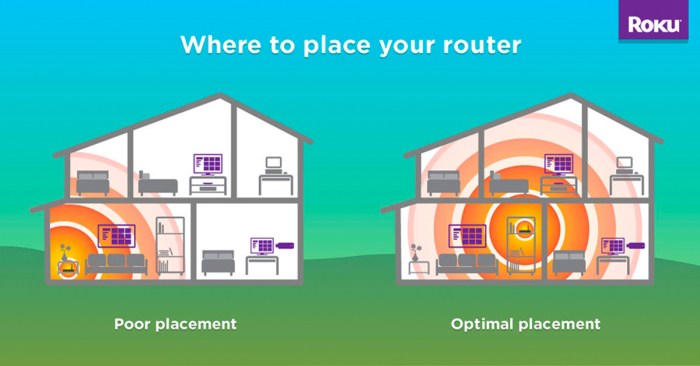
- Wireless Interference: Wireless signals can be disrupted by other devices operating on the same or overlapping frequencies (e.g., microwaves, cordless phones). This interference can lead to slow speeds and dropped connections. Solutions include changing your router’s Wi-Fi channel, relocating your router to minimize interference, or using a wired connection.
- DNS Issues: A slow or unreliable Domain Name System (DNS) can significantly impact connection times. Using a public DNS server like Google Public DNS (8.8.8.8 and 8.8.4.4) or Cloudflare DNS (1.1.1.1 and 1.0.0.1) can often improve performance.
MU-MIMO Technology: Advantages and Disadvantages
MU-MIMO (Multi-User Multiple-Input and Multiple-Output) is a technology that allows routers to communicate with multiple devices simultaneously, improving overall network efficiency.
- Advantages: MU-MIMO can significantly improve network throughput, especially in households with many connected devices. This translates to faster download speeds and lower latency for all devices, including gaming consoles and PCs. It can help mitigate performance issues caused by network congestion.
- Disadvantages: MU-MIMO requires compatible devices (both router and client). Older devices may not support this technology, limiting its benefits. The performance improvements are also dependent on the number and type of devices connected and the overall network conditions. While it offers theoretical improvements, real-world gains can vary significantly.
Troubleshooting Flowchart for Gaming Network Problems
A structured approach to troubleshooting is essential for efficient problem-solving. The following flowchart Artikels a step-by-step process for identifying and resolving common gaming network issues.
- Step 1: Check Internet Connection: Ensure your internet connection is active and functioning correctly by testing your internet speed on a speed test website.
- Step 2: Check Router Status: Restart your router and modem. Check for any error lights or messages indicating problems.
- Step 3: Test Wired vs. Wireless: Try connecting your gaming device directly to the router using an Ethernet cable to rule out wireless interference as a potential issue. If the problem is resolved, investigate wireless interference sources.
- Step 4: Check QoS Settings: Ensure your router’s QoS settings prioritize gaming traffic to allocate sufficient bandwidth for your games.
- Step 5: Check for Network Congestion: Identify and close any unnecessary applications or devices consuming significant bandwidth.
- Step 6: Contact your ISP: If the problem persists after trying these steps, contact your Internet Service Provider (ISP) to report the issue and troubleshoot potential problems with your internet connection.
Outcome Summary
Optimizing your router for gaming doesn’t require advanced technical skills; it simply involves understanding your network and making a few strategic adjustments. By implementing the steps Artikeld in this guide – from properly configuring QoS settings to troubleshooting common connection issues – you can significantly improve your online gaming performance. Remember to prioritize a wired connection whenever possible for the most stable and reliable experience. Now, go forth and conquer the online gaming world!