Harnessing the power of multiple monitors can dramatically boost productivity, but only if configured correctly. This guide provides a structured approach to optimizing your multi-monitor setup, covering everything from hardware configuration and software optimization to workflow enhancements and troubleshooting common issues. Learn how to maximize screen real estate, minimize distractions, and seamlessly integrate multiple displays into your daily workflow for a truly enhanced user experience.
From understanding optimal monitor placement and connection types to mastering virtual desktops and advanced window management techniques, we’ll explore the key strategies for transforming your multi-monitor setup from a potential source of frustration into a powerful productivity engine. We’ll delve into both the technical aspects of configuration and the practical application of these techniques to real-world scenarios, ensuring you leave with the knowledge and tools to unlock the full potential of your multi-monitor system.
Hardware Setup and Configuration
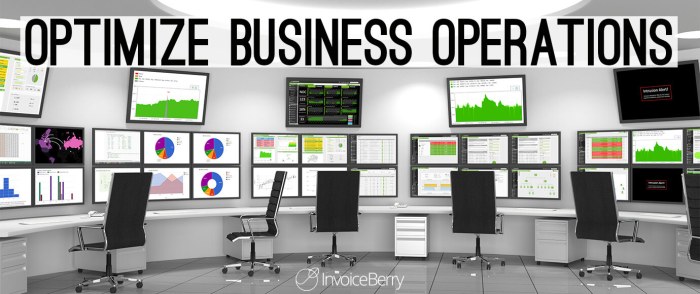
Optimizing your multi-monitor setup begins with a solid foundation in hardware. Proper placement, connection, and configuration are crucial for maximizing productivity and minimizing eye strain. This section details the key aspects of setting up your monitors for optimal performance.
The physical arrangement of your monitors significantly impacts your workflow. Ideally, the primary monitor should be positioned directly in front of you, at arm’s length, with the top of the screen roughly at eye level. Secondary monitors should be placed to the sides, maintaining a comfortable viewing angle to avoid neck strain. A curved arrangement, with the main monitor in the center and secondary monitors flanking it, is often preferred for immersive experiences and seamless transitions between screens. Avoid placing monitors directly next to each other, as the bezels might create a distraction.
Connecting Multiple Monitors
Connecting multiple monitors to your computer involves selecting the appropriate cables and ports. Most modern computers support multiple displays via HDMI, DisplayPort, or USB-C. HDMI offers a good balance of bandwidth and affordability, while DisplayPort typically provides higher resolutions and refresh rates. USB-C, increasingly common on laptops, can also transmit video signals, often supporting multiple displays through a single port (depending on your device and docking station).
- Identify the available ports on your computer and monitors.
- Choose the appropriate cables based on your ports (HDMI to HDMI, DisplayPort to DisplayPort, USB-C to USB-C or appropriate adapters).
- Connect the cables securely to both your computer and monitors.
- Turn on your computer and monitors. Your operating system should automatically detect the additional displays.
- If the displays are not detected, check the cable connections and ensure that your graphics card supports multiple displays.
- If issues persist, check your display settings in your operating system’s control panel to configure the displays and their arrangement.
Monitor Resolution and Aspect Ratio Comparison
Choosing the right resolution and aspect ratio for your monitors significantly impacts your workspace. Higher resolutions offer more screen real estate, but may require more powerful hardware. Aspect ratio affects the overall shape of your screen, influencing how you arrange windows and applications.
| Resolution | Aspect Ratio | Benefits | Drawbacks |
|---|---|---|---|
| 1920×1080 | 16:9 | Widely compatible, affordable | Lower pixel density than higher resolutions |
| 2560×1440 | 16:9 | High pixel density, sharp images | More demanding on graphics card |
| 3440×1440 | 21:9 (Ultrawide) | Increased horizontal workspace, immersive experience | Some applications may not fully utilize the wider aspect ratio |
| 3840×2160 (4K) | 16:9 | Extremely high pixel density, incredibly sharp images | Requires a very powerful graphics card and high-bandwidth cables |
Effective Bezel Management
Monitor bezels can disrupt workflow if not managed effectively. Minimizing their visual impact maximizes screen real estate and reduces distractions. Using wallpapers that span multiple monitors creates a seamless visual experience, reducing the visual separation between screens. Furthermore, carefully arranging windows to minimize bezel overlap enhances productivity. For example, placing related applications on adjacent monitors, rather than splitting them across several monitors, can streamline workflow and improve concentration. Consider using software designed to manage multiple monitors and allow for wallpaper stretching across them.
Operating System and Software Optimization
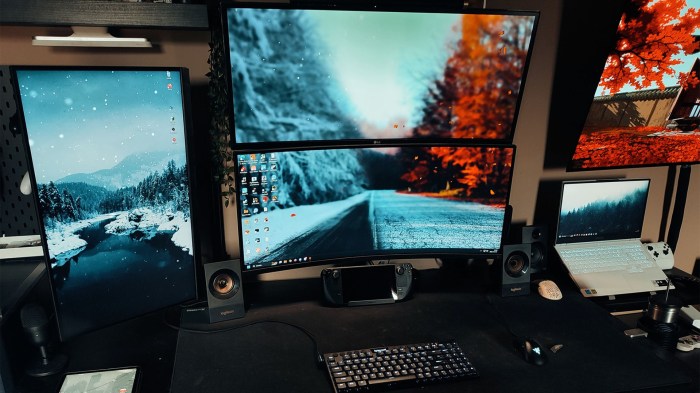
Optimizing your operating system and software is crucial for a seamless multi-monitor experience. Proper configuration ensures applications behave as expected across screens, preventing conflicts and maximizing productivity. This section details how to configure your OS and utilize software tools to enhance your multi-monitor setup.
Windows and macOS Display Settings
Configuring display settings correctly is the foundation of a good multi-monitor setup. In Windows, navigate to Settings > System > Display. Here, you can identify your monitors and arrange them to match your physical setup. Adjust the resolution and refresh rate for each display individually to match its capabilities. Choose between “Extend these displays” to create a single, larger desktop spanning all screens, or “Duplicate these displays” to mirror the same content across all monitors. macOS offers similar functionality within System Preferences > Displays, allowing users to arrange displays, adjust resolution, and select mirroring or extended desktop modes. Experimenting with these settings will help you find the optimal configuration for your workflow. For instance, a higher refresh rate will reduce screen tearing and improve responsiveness, especially for graphically demanding applications.
Virtual Desktop Management
Virtual desktops offer a powerful way to organize your work across multiple monitors. Windows 10 and 11 offer built-in virtual desktop functionality, accessible through the Task View button (usually a square icon on the taskbar). You can create new virtual desktops, move applications between them, and switch seamlessly between different workspaces. For example, you could dedicate one virtual desktop to email and communication, another to document editing, and a third for graphic design. macOS offers Spaces, providing similar functionality through Mission Control (accessed by swiping up with three fingers on the trackpad or clicking the Mission Control icon in the Dock). Managing and switching between virtual desktops is typically done through keyboard shortcuts or mouse clicks, streamlining the process and improving efficiency.
Recommended Software Tools for Multi-Monitor Management
Several software tools can enhance your multi-monitor experience beyond the basic OS features. These tools often offer advanced features for window management, application organization, and improved workflow.
- DisplayFusion: This Windows-only application provides extensive features for managing windows, creating custom hotkeys, and automating tasks across multiple monitors. It includes features like window snapping, task bar customization, and advanced display settings.
- BetterSnapTool (macOS): This tool enhances macOS’s built-in window snapping capabilities, allowing for precise window placement and management across multiple displays. It offers customizable hotkeys and presets for common window arrangements.
- Rectangle (macOS): A lightweight application that simplifies window resizing and positioning using keyboard shortcuts. It’s perfect for quickly arranging windows to fill specific areas of your multi-monitor setup.
Scaling Settings and Resolution Considerations
Different monitor resolutions can significantly impact text and UI element scaling. Inconsistent scaling across monitors can lead to blurry text or oversized UI elements on one screen compared to another. Windows allows you to set different scaling factors for each monitor individually within Display Settings. macOS also allows for per-display scaling adjustments within System Preferences > Displays. Finding the optimal scaling settings involves balancing readability with the overall desktop space utilization. For example, using a higher scaling factor on a higher-resolution monitor might improve readability, while a lower scaling factor on a lower-resolution monitor might maximize available screen space. Experimentation and careful observation are key to determining the best settings for your individual setup and preferences.
Workflow and Productivity Enhancements
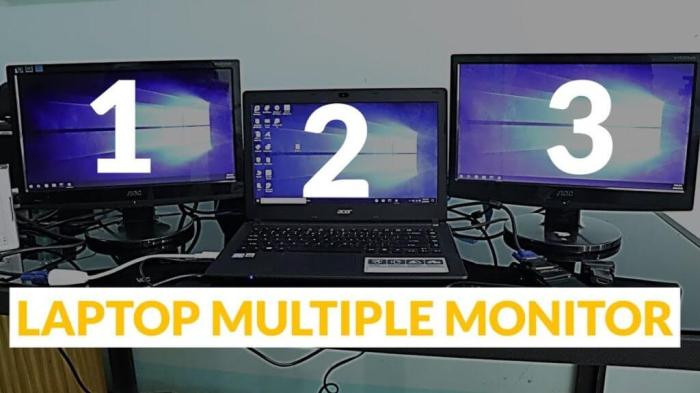
Optimizing your multi-monitor setup extends beyond just the technical aspects; it’s about fundamentally changing how you interact with your computer to boost productivity. By strategically arranging windows and applications, you can significantly reduce context switching and streamline your workflow. This section focuses on practical techniques and strategies to maximize your multi-monitor environment’s potential for enhanced efficiency.
Effective window management is the cornerstone of successful multi-monitor multitasking. Utilizing the built-in features of your operating system, combined with third-party tools if needed, can dramatically improve your ability to manage numerous applications simultaneously without feeling overwhelmed.
Window Management Techniques
Mastering window management is crucial for maximizing the benefits of multiple monitors. Operating systems offer built-in features like snapping windows to edges or corners of the screen (often using keyboard shortcuts like Windows key + arrow keys) and virtual desktops (for grouping related applications). These features, combined with the ability to easily drag and drop windows between monitors, allow for a highly organized and efficient workspace. Consider using a keyboard shortcut manager to further streamline these actions. For instance, assigning a specific hotkey to instantly maximize a window on a particular monitor can save significant time.
Application Placement Strategies
Strategic placement of applications across monitors is key. Dedicate one monitor to communication and collaboration tools (email, chat, etc.), another to primary work applications (word processor, spreadsheet, etc.), and a third to reference materials (web browser, research documents, etc.). This separation minimizes distractions and keeps your focus sharp. For example, a graphic designer might dedicate one monitor to Adobe Photoshop, another to Adobe Illustrator, and a third to browsing reference images and color palettes. A software developer might use one monitor for their IDE, another for documentation and testing, and a third for communication with team members.
Multitasking Strategies: A Comparison
Several multitasking strategies can be employed with multiple monitors. The “single-application-per-monitor” approach promotes focus by limiting distractions, but it might not be suitable for tasks requiring constant switching between applications. Conversely, the “multiple-application-per-monitor” approach allows for quick access to various tools, but can lead to a cluttered and disorganized workspace if not managed carefully. The optimal strategy depends on individual workflow preferences and the nature of the tasks at hand. Experiment with different approaches to find what best suits your needs.
Common Productivity Pitfalls and Solutions
Effective multi-monitor usage requires awareness of potential pitfalls. Below is a table outlining common problems, their solutions, examples, and the resulting improvements.
| Problem | Solution | Example | Result |
|---|---|---|---|
| Screen Resolution Mismatch | Set all monitors to the same resolution or a resolution that’s comfortable across all screens. | One monitor at 1920×1080 and another at 2560×1440 causing inconsistent scaling. | Improved visual consistency and reduced eye strain. |
| Cluttered Desktops | Use virtual desktops to organize applications into logical groups. | Numerous application windows open across all monitors, making it difficult to find what’s needed. | Improved organization, reduced clutter, and faster application access. |
| Inefficient Window Management | Utilize keyboard shortcuts for window snapping and resizing. | Constantly using the mouse to resize and move windows. | Increased speed and efficiency in managing windows. |
| Poor Application Placement | Strategically place applications on different monitors to minimize context switching. | Having email and chat applications on the same monitor as primary work applications. | Reduced distractions and improved focus on primary tasks. |
Closure
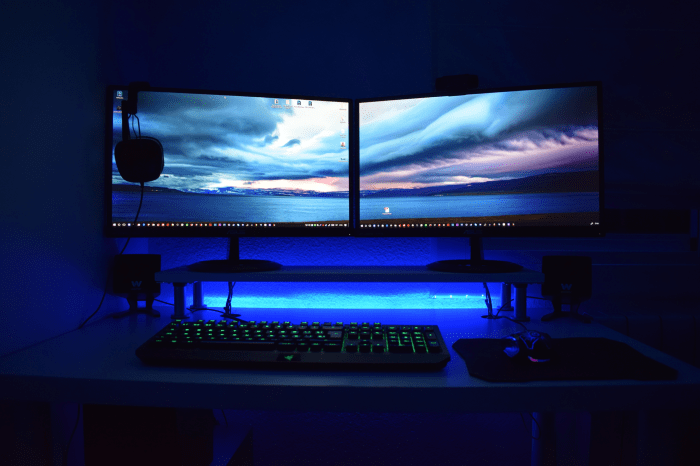
Optimizing a multi-monitor setup is a journey, not a destination. By systematically addressing hardware, software, and workflow considerations, you can create a personalized workspace that seamlessly adapts to your specific needs and dramatically enhances your productivity. Remember that the optimal configuration is subjective and depends on individual preferences and work styles; however, the principles Artikeld in this guide provide a solid foundation for building a highly effective and enjoyable multi-monitor experience. Experiment with different settings, tools, and workflows to discover what works best for you and continuously refine your setup to maximize your efficiency and comfort.