Experiencing frustratingly slow speeds with your VPN? A sluggish connection can significantly impact your online experience, hindering productivity and enjoyment. This guide delves into four key areas for optimizing your VPN performance, focusing on practical configuration changes you can implement to significantly boost your speeds. We’ll explore server selection, client settings, network configurations, and more, providing actionable steps to reclaim your internet speed.
By understanding the factors influencing VPN speed – from server location and protocol choice to network congestion and router settings – you can take control and tailor your setup for optimal performance. We’ll cover a range of techniques suitable for users of all technical levels, empowering you to troubleshoot and improve your VPN connection.
Choosing the Right VPN Server
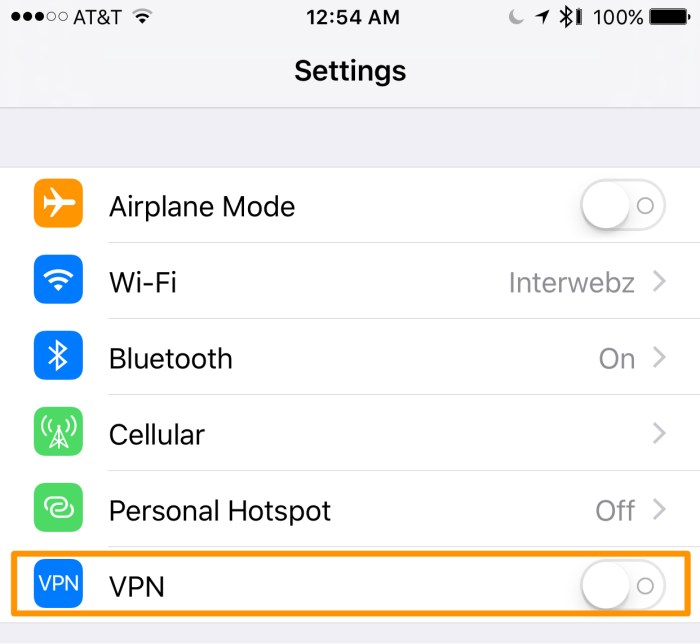
Selecting the optimal VPN server significantly impacts your connection speed. Factors like server location, load, and the chosen VPN protocol all contribute to the overall performance. Optimizing these aspects can drastically improve your browsing experience.
Server location directly affects latency, the delay in data transmission. A server geographically closer to you will generally result in faster speeds due to reduced travel time for data packets. Conversely, choosing a server across the globe will inevitably increase latency. Server load, or the number of users connected to a particular server, also plays a crucial role. A heavily loaded server will share its resources among many users, resulting in slower speeds for everyone. Finally, different VPN protocols offer varying levels of speed and security.
VPN Server Location and Latency
The distance between your device and the VPN server is a key determinant of latency. Latency is measured in milliseconds (ms). Lower latency equates to faster speeds. The following table illustrates latency differences for various server locations, assuming a user located in New York City:
| Server Location | Approximate Latency (ms) |
|---|---|
| New York City | 20-50 |
| London, UK | 100-150 |
| Sydney, Australia | 200-300+ |
| Tokyo, Japan | 150-250 |
*Note: These are approximate values and can vary based on network conditions and server load.*
Identifying and Selecting a Less Congested Server
Finding a less congested server involves a systematic approach. Here’s a step-by-step guide:
1. Check your VPN client’s server list: Most VPN clients display server load indicators (e.g., percentage, color-coded icons). Look for servers with lower load indicators.
2. Use a server closer to your physical location: As previously discussed, proximity reduces latency.
3. Test different servers: Connect to several servers with low load indicators and measure your download and upload speeds using a speed test website (e.g., Ookla Speedtest). Choose the server providing the best results.
4. Connect at off-peak hours: Network congestion is often higher during peak usage times. Connecting during less busy hours can improve speeds.
5. Consider using a less popular server: Servers in less populated regions may experience lower congestion.
VPN Protocol Comparison: Speed, Security, and Compatibility
Different VPN protocols offer a trade-off between speed, security, and compatibility. OpenVPN, WireGuard, and IKEv2 are popular choices.
| Protocol | Speed | Security | Compatibility |
|---|---|---|---|
| OpenVPN | Moderate | High | Wide |
| WireGuard | High | High | Growing |
| IKEv2 | High | High | Good |
*Note: Speed ratings are relative and can vary depending on factors like server load and network conditions.* WireGuard, for example, is known for its superior speed, but its compatibility may be less widespread than OpenVPN. IKEv2 offers a good balance between speed and compatibility. Security is generally high across all three protocols, although specific implementations may vary.
Optimizing VPN Client Settings
Optimizing your VPN client’s settings can significantly impact your connection speed. By making a few targeted adjustments, you can strike a balance between security and performance, ensuring a fast and reliable VPN experience. This section focuses on three key areas: encryption levels, MTU settings, and the use of a kill switch.
Encryption Levels and Their Impact on Speed
Different encryption protocols offer varying levels of security and speed. Stronger encryption generally provides better security but consumes more processing power, leading to slower speeds. Weaker encryption is faster but compromises security. The choice depends on your priorities. For example, AES-256-GCM is considered a strong and relatively fast option, offering a good balance between security and speed. AES-128-CBC, while faster, provides less robust security. OpenVPN with UDP tends to be faster than TCP, but TCP is more reliable in case of network instability. Experimenting with different protocols and encryption levels will help determine the optimal setting for your specific needs and hardware. Consider your threat model; if you are primarily concerned with anonymity and not dealing with highly sensitive data, a faster, less secure option may be acceptable. Conversely, if you’re handling sensitive financial information, prioritizing stronger encryption is crucial, even if it means slightly slower speeds.
MTU Settings and Their Optimization
The Maximum Transmission Unit (MTU) is the largest size of a packet that can be transmitted over a network. Incorrect MTU settings can lead to packet loss and slower speeds, especially with VPN connections. Optimizing your MTU involves finding the largest size that your network can handle without fragmentation. Fragmentation leads to increased overhead and reduced speed.
Adjusting MTU settings can be done differently across various operating systems. Here’s a general guideline:
- Windows: You’ll typically need to use the command prompt or PowerShell. Commands will vary depending on your VPN client, but generally involve modifying the interface’s properties. It often requires administrative privileges. There’s no single command, as the process is client-specific and may require researching the specific VPN client’s documentation.
- macOS: Similar to Windows, you might need to use the terminal and commands that depend on your VPN client. You may need to consult your specific VPN client’s documentation for instructions.
- Linux: The process usually involves modifying network interface settings through the command line, often using the `ip` command or similar tools depending on your distribution and VPN client. Again, your VPN client’s documentation will be invaluable.
- Android/iOS: Most VPN apps for mobile operating systems handle MTU automatically. Manual adjustment is less common and may not be available in the app’s settings.
Note: Incorrectly configuring MTU can disrupt your internet connection. It is recommended to start with a slightly lower value than the default (e.g., 1400 instead of 1500) and incrementally increase it until you find the optimal setting. Always back up your current settings before making any changes.
VPN Kill Switch Functionality and Speed
A VPN kill switch is a security feature that cuts off your internet connection if your VPN connection drops unexpectedly. This prevents your real IP address from being exposed. While essential for security, a kill switch can slightly impact speed due to the added overhead of monitoring the VPN connection.
Enabling or disabling a kill switch is usually straightforward within your VPN client’s settings. Look for an option explicitly labeled “Kill Switch,” “Network Lock,” or something similar. The impact on speed is usually minimal, but it can be noticeable on slower connections. If you experience performance issues, temporarily disabling the kill switch can help determine if it’s contributing to the problem. However, remember that disabling the kill switch compromises your security, so only do so for testing purposes and re-enable it afterward.
Network Configuration Improvements
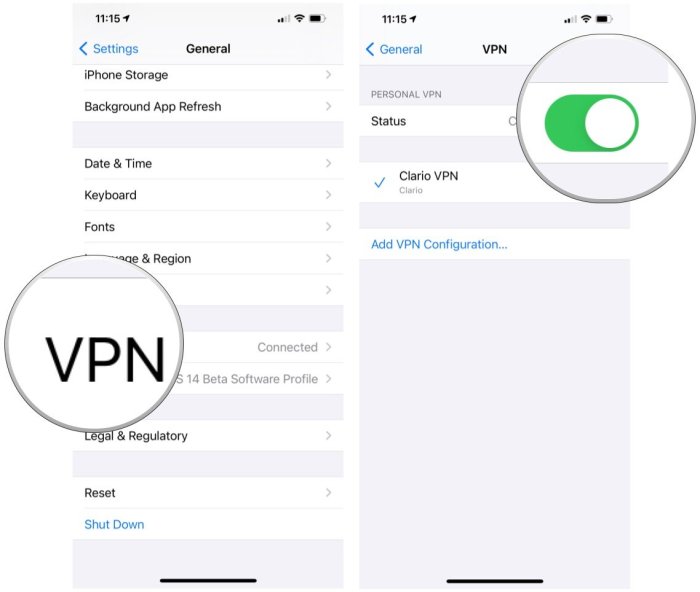
Optimizing your network configuration is crucial for maximizing VPN speed. A poorly configured network can significantly bottleneck your connection, regardless of your VPN server choice or client settings. Addressing network congestion and ensuring a stable internet connection are key steps in achieving optimal VPN performance.
Network congestion and a weak home network can severely impact VPN speed. Identifying and resolving these issues can dramatically improve your online experience. Furthermore, properly configuring your router can further enhance VPN performance.
Identifying and Resolving Network Congestion
Network congestion occurs when too many devices are using your internet connection simultaneously, or when your internet plan’s bandwidth is insufficient for your needs. This leads to slower speeds, increased latency, and dropped connections, all of which negatively affect your VPN experience. The following steps can help identify and mitigate these issues.
- Monitor Network Usage: Use your router’s built-in tools or third-party network monitoring software to track bandwidth consumption by each device. This helps identify bandwidth hogs that may be contributing to congestion.
- Limit Bandwidth-Intensive Activities: During peak VPN usage, temporarily pause or limit bandwidth-intensive activities like streaming high-definition videos or large file downloads on other devices.
- Prioritize VPN Traffic (Quality of Service – QoS): Many routers offer Quality of Service (QoS) settings. This allows you to prioritize VPN traffic over other network activities, ensuring it receives sufficient bandwidth even during periods of high network usage. This usually involves assigning a higher priority to the VPN client’s IP address or port.
- Check for Malware and Viruses: Malware can consume significant bandwidth in the background. Run a full system scan with updated antivirus software to eliminate any potential threats.
- Restart Your Router and Modem: A simple restart can often resolve temporary network glitches that impact VPN performance. Unplug both devices, wait 30 seconds, and then plug them back in.
- Contact Your Internet Service Provider (ISP): If you’ve ruled out local issues, contact your ISP to report slow speeds or other connectivity problems. They can investigate potential issues with your internet connection or suggest ways to improve it.
Improving Home Network Speed
A strong and stable internet connection is fundamental for optimal VPN performance. Several best practices can significantly improve your home network speed.
Improving your home network speed involves several strategies, from optimizing your router placement to upgrading your internet plan. A faster, more reliable internet connection directly translates to better VPN performance.
- Upgrade Your Internet Plan: Consider upgrading to a higher-speed internet plan if your current plan’s bandwidth is insufficient for your needs, especially if you have multiple devices connected and frequently use bandwidth-intensive applications.
- Optimize Router Placement: Place your router in a central location, away from obstructions like walls and large metal objects. A clear line of sight to your devices improves signal strength and reduces interference.
- Use a Wired Connection: Whenever possible, connect your VPN client to your router using an Ethernet cable. Wired connections are generally faster and more reliable than Wi-Fi.
- Update Router Firmware: Regularly update your router’s firmware to benefit from the latest bug fixes, security patches, and performance enhancements.
- Use a 5GHz Wi-Fi Network: If using Wi-Fi, connect to the 5GHz band if available. 5GHz networks generally offer faster speeds and less interference than 2.4GHz networks.
Optimizing Router Settings for VPN Performance
Router settings can significantly impact VPN speed. Proper configuration ensures efficient routing of VPN traffic and avoids unnecessary delays.
The following table Artikels key router settings and their impact on VPN speed. Note that specific settings and their locations may vary depending on your router’s manufacturer and model.
| Setting | Impact on VPN Speed | Recommended Value |
|---|---|---|
| QoS (Quality of Service) | Prioritizes VPN traffic, ensuring sufficient bandwidth even during congestion. | Enable QoS and prioritize VPN traffic (check your router’s manual for specific instructions). |
| MTU (Maximum Transmission Unit) | Adjusting the MTU can resolve packet loss issues, improving speed and stability. Lowering the MTU slightly may help if you experience packet loss. | Experiment with values slightly lower than the default (e.g., 1400 instead of 1500). Monitor your connection for improvement. |
| Firewall | Ensure the firewall allows VPN traffic through the appropriate ports. | Check your router’s firewall settings and ensure that the ports used by your VPN client are allowed. |
| Wireless Channel | Choosing a less congested wireless channel can improve Wi-Fi speed, indirectly benefiting VPN performance. | Use a Wi-Fi analyzer app to identify less congested channels on your 2.4GHz and 5GHz bands. |
Conclusion
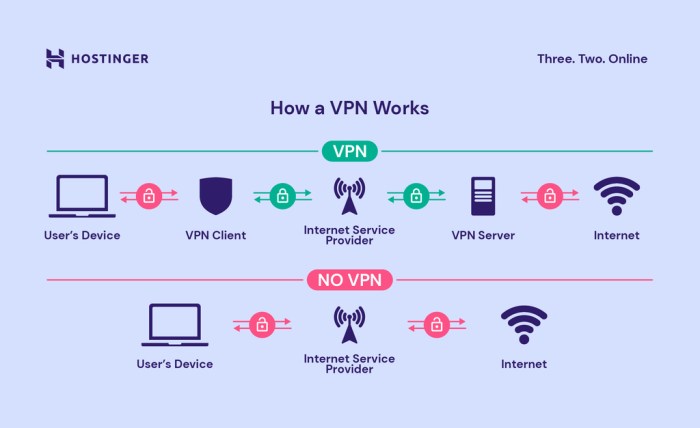
Optimizing your VPN connection speed involves a multifaceted approach, encompassing server selection, client settings, and network configurations. By strategically choosing less congested servers, adjusting encryption levels and MTU settings, resolving network bottlenecks, and optimizing your router, you can significantly improve your online experience. Remember that a strong, stable internet connection is paramount; consider upgrading your internet plan if necessary. This guide provides a solid foundation for enhancing your VPN performance; experiment with these strategies to find the ideal balance between speed and security for your specific needs.