Reducing your PC’s energy consumption is not only environmentally responsible but also contributes to lower electricity bills and potentially extended hardware lifespan. This guide explores three key software approaches to optimizing power usage, offering practical strategies and comparative analyses of popular tools. We will examine power monitoring software to understand your PC’s energy habits, process management utilities to control resource-intensive applications, and system-level optimization tools to fine-tune power plans and hardware settings for maximum efficiency.
Through detailed explanations, step-by-step instructions, and comparative tables, we aim to empower you with the knowledge and tools necessary to significantly reduce your PC’s energy footprint without compromising performance. We’ll delve into the intricacies of each software category, highlighting both their strengths and limitations, and providing clear guidance on implementation and troubleshooting.
Power Consumption Monitoring Tools
Understanding your PC’s power usage is crucial for optimization. Power monitoring software provides detailed insights into energy consumption, allowing for targeted adjustments to reduce your electricity bill and extend the lifespan of your components. These tools go beyond simple wattage readings, offering granular data about individual components and processes.
Power monitoring software operates by collecting data from various hardware sensors and system logs. This data is then processed and presented in user-friendly formats, such as graphs, charts, and tables, highlighting energy-intensive processes and hardware components. Different software packages utilize varying methodologies for data collection and analysis, leading to differences in accuracy, features, and user experience.
Power Monitoring Software Comparison
The following table compares three popular power monitoring tools, highlighting their key features, system requirements, and user feedback.
| Software Name | Key Features | System Requirements | User Reviews Summary |
|---|---|---|---|
| HWiNFO64 | Comprehensive hardware monitoring, detailed power consumption readings for individual components, customizable dashboards, logging capabilities. | Windows 7 and later, relatively low system resource usage. | Highly praised for its accuracy and extensive features. Some users find the interface slightly complex for beginners. |
| Core Temp | Focuses primarily on CPU temperature and power consumption, provides real-time monitoring and historical data, simple and intuitive interface. | Windows XP and later, minimal system resource impact. | Known for its ease of use and reliable temperature readings. Lacks the breadth of features found in HWiNFO64. |
| Open Hardware Monitor | Open-source alternative, monitors various hardware parameters including power consumption, supports a wide range of hardware, customizable alerts. | Windows, Linux, and macOS, low system resource usage. | Appreciated for its open-source nature and cross-platform compatibility. Feature set may be less comprehensive than commercial options. |
Installing and Configuring HWiNFO64
This section provides a step-by-step guide on installing and configuring HWiNFO64, a powerful and versatile power monitoring tool.
Before beginning, ensure you have downloaded the latest version of HWiNFO64 from the official website. Proper installation is crucial for accurate data collection. Troubleshooting steps are included to address common installation issues.
- Download the HWiNFO64 installer from the official website.
- Run the installer and follow the on-screen instructions. Accept the default settings unless you have specific preferences.
- After installation, launch HWiNFO64. The main window will display various hardware sensors and their readings.
- Navigate to the “Sensors” tab. You’ll find a wealth of information, including power consumption data for different components (CPU, GPU, etc.).
- Customize the displayed sensors by selecting the ones you want to monitor. You can create custom sensor groups for easier viewing.
- Configure logging options to save data for later analysis. This is beneficial for identifying trends and pinpointing power consumption spikes.
- Troubleshooting: If HWiNFO64 fails to detect certain sensors, ensure that the necessary drivers are installed and that your system BIOS is configured correctly.
Typical Power Consumption Report Structure
A typical power consumption report, generated by software like HWiNFO64, is usually visually structured as a combination of tables and graphs. The report’s visual structure is vital for quick interpretation of data.
Imagine a report with a top section displaying a summary of overall system power consumption (in Watts) averaged over a specified time period (e.g., last hour, last day). Below this, a table lists individual components (CPU, GPU, HDD, etc.) and their respective power draw. This is followed by several graphs. One graph might show power consumption over time, illustrating fluctuations throughout the day. Another could show a breakdown of power usage by component, allowing for quick identification of power-hungry components. A final section might provide an overall energy usage estimate (kWh) based on the monitored data and the duration of monitoring. This report allows users to visually identify power consumption trends and pinpoint areas for optimization.
Process Management and Optimization Software

Efficiently managing running processes is crucial for minimizing PC power consumption. Many applications, even when seemingly idle, consume significant resources in the background. By identifying and controlling these processes, you can noticeably reduce your system’s energy demands. This section explores several software solutions designed for process management and optimization, highlighting their features and benefits in relation to power saving.
Understanding how to identify and manage power-hungry processes is paramount to optimizing your PC’s energy efficiency. These processes, often running silently in the background, can significantly impact battery life on laptops and electricity consumption on desktops. Effective management involves a combination of monitoring, prioritization, and control techniques.
Techniques for Identifying and Managing Power-Hungry Processes
Several techniques can help you pinpoint and manage energy-intensive processes. These methods provide a multi-faceted approach to optimizing your system’s power consumption, ensuring a balance between performance and energy efficiency.
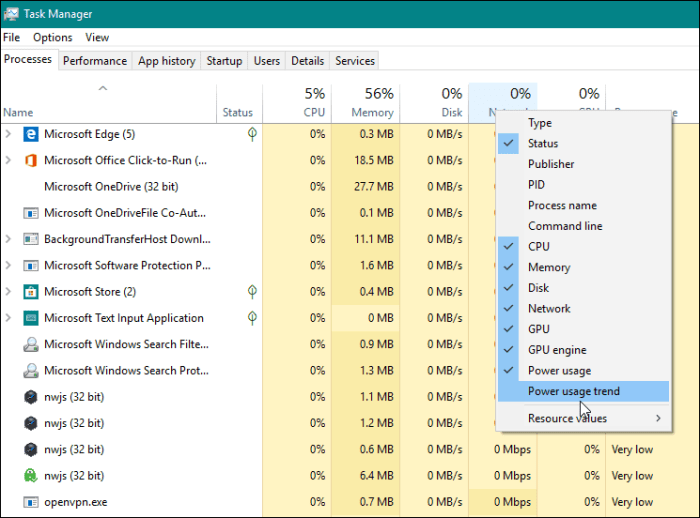
- Regularly Monitor Resource Usage: Utilize the Task Manager (Windows) or Activity Monitor (macOS) to observe CPU, memory, and disk usage. Processes consistently consuming high resources are likely candidates for optimization.
- Identify Processes with High CPU Usage: High CPU usage directly correlates with increased power consumption. Focus on reducing the activity of processes consistently demanding high CPU percentages.
- Analyze Disk I/O: Excessive disk activity, especially continuous reading and writing, contributes to power drain. Identify processes causing this and consider reducing their activity or optimizing their operations.
- Utilize Power-Aware Applications: Many applications include built-in power-saving modes or settings. Activating these features can significantly reduce their resource consumption.
- Disable Unnecessary Startup Programs: Numerous applications automatically launch at startup, consuming resources even when not actively used. Disabling unnecessary startup programs reduces background activity and power consumption.
Comparison of Process Management Utilities
Several software utilities offer advanced process management and optimization capabilities. The following table compares three popular options, focusing on their power optimization features and user interface.
| Software Name | Process Control Methods | Energy Saving Features | User Interface Design |
|---|---|---|---|
| Process Lasso | Real-time process prioritization, process limiting, and automation | Intelligent power management based on process activity, customizable profiles for different power states | Intuitive and customizable interface with various visualization options |
| Resource Monitor (Windows) | Process monitoring, resource allocation analysis | Indirect energy saving through identifying and managing resource-intensive processes | Detailed, system-level view of resource usage; can be overwhelming for novice users |
| System Monitor (Linux) | Comprehensive process monitoring, resource allocation analysis, process killing | Indirect energy saving through identifying and managing resource-intensive processes; depends on system-wide power management settings | Command-line interface (often) or graphical interfaces (depending on distribution) offering customizable views of system resources |
Impact of Background Processes on Power Consumption
Background processes, running silently without direct user interaction, contribute significantly to overall system power consumption. These processes perform tasks such as system maintenance, software updates, and cloud synchronization. Effective management of these processes is essential for maximizing battery life or reducing electricity usage.
Prioritizing and managing background processes involves a combination of techniques. Disabling unnecessary background tasks, limiting their resource usage, and scheduling resource-intensive operations for times of low power demand can considerably improve energy efficiency. For example, disabling automatic cloud synchronization during periods of low network connectivity or deferring software updates until the system is plugged into a power source can lead to substantial power savings. Careful monitoring and selective disabling of background applications can make a significant difference in overall energy consumption.
System-Level Power Optimization Software
System-level power optimization software provides comprehensive control over your PC’s power consumption, going beyond individual applications. These tools allow you to adjust various settings that directly impact energy usage, offering a holistic approach to reducing your computer’s power footprint. By managing power plans and hardware components, you can achieve significant energy savings without sacrificing performance, particularly for desktop systems.
Understanding and utilizing the features of system-level power optimization software is crucial for effective power management. This includes leveraging pre-defined power plans, creating custom plans tailored to individual needs, and managing hardware components such as the CPU, GPU, and storage devices.
Power Plans and Their Influence on PC Power Consumption
Power plans are pre-configured settings that determine how your hardware behaves in terms of power usage and performance. Windows, for example, offers several default power plans: High performance, Balanced, and Power saver. Each plan prioritizes different aspects, resulting in varying power consumption levels.
The choice of power plan significantly influences your PC’s energy consumption. A high-performance plan prioritizes speed and responsiveness, leading to higher power draw, while a power saver plan emphasizes minimizing energy use, even if it means slightly slower performance.
- High Performance: Maximizes processor speed and responsiveness. This leads to higher power consumption and heat generation. Ideal for demanding tasks like gaming or video editing.
- Balanced: Strikes a balance between performance and power saving. This is often the best default option for everyday use.
- Power Saver: Prioritizes energy efficiency, reducing power consumption significantly. This can result in slower processing speeds and reduced screen brightness.
Creating a Custom Power Plan
Creating a custom power plan allows for fine-grained control over your system’s power settings, enabling you to optimize it precisely for your needs and hardware. This is particularly useful if you find the pre-defined plans don’t perfectly match your usage patterns.
To create a custom power plan, you can follow these steps (using Windows as an example):
- Open the Control Panel and navigate to “Power Options”.
- Click “Create a power plan”.
- Choose a base plan (e.g., Balanced) to start with.
- Give your new plan a name (e.g., “Custom Energy Saver”).
- Adjust settings such as screen brightness, sleep timeout, and hard drive settings to your preference. For example, reducing screen brightness significantly lowers power consumption. Setting the hard drive to sleep after a shorter period also saves energy.
- Click “Create”.
Comparison of System-Level Power Optimization Utilities
Several third-party utilities offer advanced power management capabilities beyond what’s built into operating systems. These tools often provide more granular control over hardware components and offer additional optimization features.
| Software Name | Hardware Control Features | Advanced Settings | Compatibility |
|---|---|---|---|
| Intel XTU (Extreme Tuning Utility) | CPU voltage and frequency control, power limits | Detailed performance and power monitoring, custom power profiles | Intel processors |
| AMD Ryzen Master | CPU clock speeds, voltage, precision boost overdrive | Custom power limits, detailed performance monitoring | AMD Ryzen processors |
| ThrottleStop | CPU power management, undervolting capabilities | Extensive monitoring and tweaking options, including disabling specific CPU cores | Intel and AMD processors |
Conclusion
Optimizing your PC’s power consumption is a multifaceted process involving careful monitoring, process management, and strategic system-level adjustments. By leveraging the power monitoring, process management, and system-level optimization software discussed, you can gain granular control over your system’s energy usage. This allows for a tailored approach that balances performance needs with energy efficiency, leading to significant long-term savings and a reduced environmental impact. Remember to regularly review and adjust your settings as needed to maintain optimal performance and energy efficiency.