Frustrated with lag and low frame rates? Unlocking peak gaming performance isn’t about solely upgrading your hardware; it’s a strategic blend of hardware optimization, software tweaks, and in-game adjustments. This guide delves into practical techniques to elevate your gaming experience, regardless of your system’s specifications. We’ll explore how to maximize your existing setup, ensuring smoother gameplay and a more immersive experience.
From understanding the interplay between your CPU, GPU, and RAM to mastering in-game settings and resolving common software conflicts, we’ll equip you with the knowledge to troubleshoot performance issues and achieve a significant improvement in your gaming sessions. Whether you’re a seasoned gamer or a newcomer, this guide offers actionable steps to transform your gaming experience.
Hardware Optimization
Optimizing your gaming PC’s hardware is crucial for achieving a smooth and enjoyable gaming experience. The performance of your games is directly tied to the capabilities of your CPU, GPU, and RAM. Understanding how these components interact and impact performance allows for informed upgrades and better resource management.
Your CPU (Central Processing Unit), often referred to as the “brain” of your computer, handles the game’s logic, physics calculations, and AI. A more powerful CPU allows for smoother gameplay, especially in CPU-intensive games. Your GPU (Graphics Processing Unit), also known as the graphics card, is responsible for rendering the visuals you see on screen. A high-performance GPU is essential for high resolutions, high frame rates, and advanced graphical settings. Finally, RAM (Random Access Memory) acts as short-term storage for data that the CPU and GPU need to access quickly. Insufficient RAM can lead to stuttering and performance drops, as the system struggles to load necessary game assets.
CPU, GPU, and RAM Impact on Gaming Performance
The impact of each component varies depending on the game. CPU-intensive games, such as strategy games or simulations, rely heavily on the processing power of the CPU. GPU-intensive games, such as first-person shooters or open-world adventures, demand a powerful GPU to render complex graphics smoothly. Sufficient RAM is crucial for all games; a lack of it will bottleneck even the most powerful CPUs and GPUs.
Consider these examples: A budget system with a low-end CPU (e.g., Intel Pentium Gold G6400) and integrated graphics will struggle to run modern games at playable frame rates. A mid-range system with a mid-range CPU (e.g., AMD Ryzen 5 5600X) and a dedicated GPU (e.g., NVIDIA GeForce RTX 3060) will offer a good balance of performance and affordability. A high-end system with a top-tier CPU (e.g., Intel Core i9-13900K) and a high-end GPU (e.g., NVIDIA GeForce RTX 4090) will deliver exceptional performance at maximum settings.
CPU Architecture Comparison in Gaming
The choice between Intel and AMD CPUs often comes down to specific model features and pricing. Both manufacturers offer excellent gaming CPUs. However, performance can vary.
| CPU Model | Clock Speed (GHz) | Benchmark Score (Example) | Price Range (USD) |
|---|---|---|---|
| Intel Core i5-13600K | 5.1 | 15000 | 300-350 |
| AMD Ryzen 5 7600X | 4.7 | 14500 | 250-300 |
| Intel Core i7-13700K | 5.4 | 17000 | 400-450 |
| AMD Ryzen 7 7700X | 5.0 | 16500 | 350-400 |
Note: Benchmark scores are illustrative examples and can vary based on specific testing conditions and benchmarks used.
Cooling Solutions for Optimal Gaming Performance
Effective cooling prevents overheating, which can lead to performance throttling (reducing clock speeds to prevent damage) and system instability. Several cooling methods exist, each with its own advantages and disadvantages.
Air cooling, using heatsinks and fans, is the most common and generally affordable option. It’s relatively easy to install and maintain. However, it might not be sufficient for high-end CPUs and GPUs under heavy load. Liquid cooling, using a radiator and coolant, offers superior cooling performance, allowing for higher clock speeds and sustained performance. It’s more expensive and complex to install than air cooling, and requires more maintenance. Custom water loops provide the most extreme cooling capabilities, but require significant expertise and investment. They are also the most maintenance-intensive option.
Software Optimization
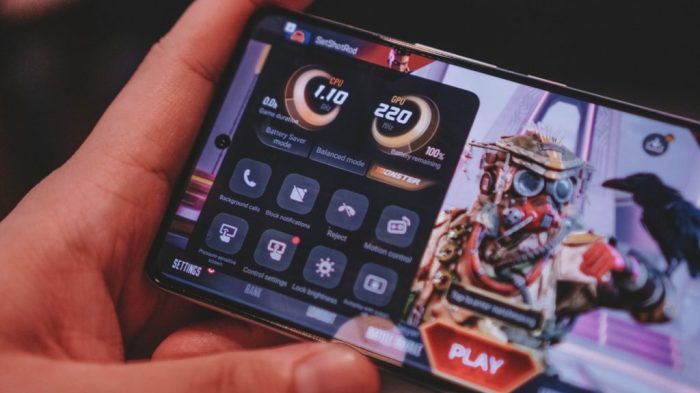
Optimizing your gaming software is just as crucial as optimizing your hardware. A poorly configured operating system or outdated drivers can significantly bottleneck performance, regardless of your hardware’s capabilities. This section focuses on key software adjustments to maximize your gaming experience.
Operating System Settings for Enhanced Gaming Performance
Windows offers several settings that directly impact gaming performance. Disabling unnecessary background processes and services can free up system resources, leading to smoother gameplay. For example, reducing visual effects, like animations and shadows, within the system’s performance settings can improve frame rates, particularly on lower-end systems. Prioritizing game processes through the task manager allows your game to access more resources, reducing lag and stuttering. Furthermore, adjusting power settings to a high-performance mode ensures the system utilizes its full potential, instead of conserving energy. These adjustments, while seemingly minor, collectively contribute to a noticeable improvement in overall gaming performance.
Updating Graphics Drivers for Optimal Gaming Performance
Outdated or corrupted graphics drivers are a common cause of performance issues. Updating to the latest drivers often includes performance optimizations and bug fixes specifically designed to enhance gaming experiences. The update process varies slightly depending on your graphics card manufacturer (NVIDIA, AMD, or Intel). Generally, it involves accessing the manufacturer’s website, identifying your graphics card model, and downloading the appropriate driver package. A typical process would involve: 1) Navigating to the support section of the manufacturer’s website. 2) Entering your graphics card model number. 3) Selecting the appropriate operating system. 4) Downloading the latest driver. 5) Running the installer and following the on-screen instructions. A successful installation usually requires a system restart. (Note: Screenshots depicting this process would show the manufacturer’s website, the driver download page, the installer, and a confirmation message after successful installation. These would show general steps and not specific website interfaces due to the dynamic nature of websites.)
Performance Impact of Different Game Launch Options
The way you launch a game can affect performance. Fullscreen mode typically provides the best performance as it dedicates all available resources to the game. Borderless windowed mode offers a compromise, allowing you to see your desktop without minimizing the game, but it might slightly reduce performance compared to fullscreen. Windowed mode offers the least performance due to the overhead of managing the window within the operating system. Within game settings, turning down graphical details like shadows, anti-aliasing, and texture quality can significantly improve frame rates, especially on older or less powerful systems. For example, reducing shadow resolution from “High” to “Medium” or disabling anti-aliasing can often result in a noticeable performance boost without significantly impacting visual quality.
Common Software Conflicts and Solutions
Several software applications can conflict with games, leading to performance issues or crashes. Antivirus software, for example, can sometimes interfere with game executables, leading to slowdowns or unexpected closures. Disabling or temporarily pausing the antivirus during gameplay can often resolve this issue. Similarly, overlay software from streaming platforms or communication applications can consume system resources, impacting performance. Disabling these overlays during gameplay can improve frame rates. Background applications consuming significant CPU or RAM resources can also negatively impact performance. Closing unnecessary applications before launching a game can free up resources and improve stability. Finally, outdated or conflicting drivers for other peripherals (like sound cards or controllers) can occasionally create problems. Updating these drivers to their latest versions often resolves these issues.
Epilogue
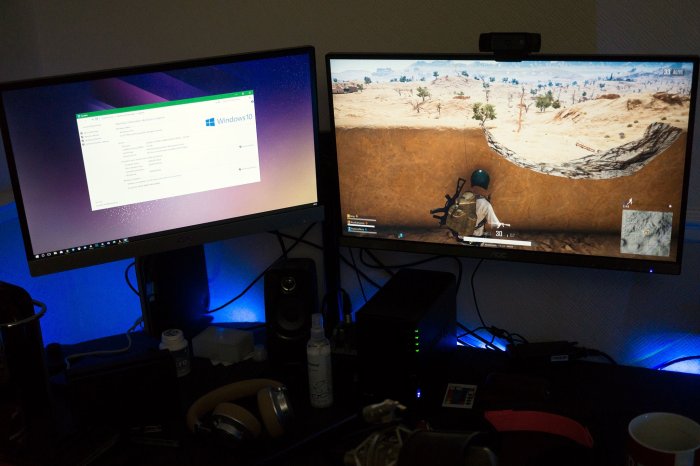
By implementing the hardware and software optimizations, and fine-tuning in-game settings Artikeld in this guide, you can significantly enhance your gaming performance. Remember that a holistic approach, considering all aspects from cooling solutions to driver updates, yields the best results. Don’t be afraid to experiment and find the optimal balance between visual fidelity and frame rate for your system. With a little effort, you can transform frustrating lag into smooth, immersive gameplay.