Frustrated with slow internet speeds? A sluggish home network can significantly impact productivity and entertainment. This guide offers three straightforward solutions to diagnose and resolve common network bottlenecks, ultimately enhancing your online experience. We’ll explore simple steps to optimize your router settings, improve device performance, and maintain a healthy network environment, ensuring a faster and more reliable connection for all your devices.
From identifying bandwidth hogs to optimizing Wi-Fi channels and upgrading outdated equipment, we’ll provide practical advice and easy-to-follow instructions. By the end, you’ll have the knowledge and tools to troubleshoot network issues and enjoy a significantly improved internet connection.
Identify and Eliminate Network Bottlenecks
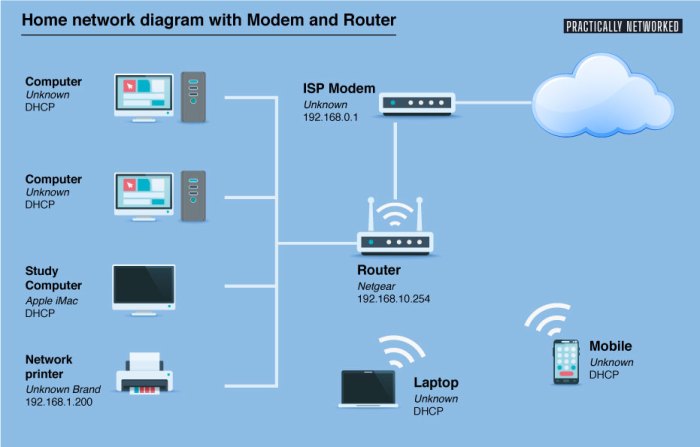
A slow home network can be incredibly frustrating. Identifying and resolving bottlenecks is crucial for restoring optimal speeds. This involves pinpointing the source of the slowdown, whether it’s your router, Wi-Fi signal, or a bandwidth-hogging device. By systematically investigating these potential culprits, you can significantly improve your network’s performance.
Identifying Potential Bottlenecks
Pinpointing the source of network slowdown requires a methodical approach. Start by considering the common causes of bottlenecks, observing the symptoms, and then employing troubleshooting steps to isolate the problem. The following table summarizes these steps:
| Bottleneck Cause | Symptoms | Troubleshooting Steps | Solution |
|---|---|---|---|
| Overloaded Router | Slow speeds for all devices, frequent disconnections, high CPU/memory usage on the router (check router’s admin interface) | Check router’s CPU and memory usage. Examine the number of connected devices. Restart the router. | Upgrade to a router with greater processing power and capacity. Reduce the number of connected devices if possible. Consider using a mesh Wi-Fi system for better coverage and capacity. |
| Weak Wi-Fi Signal | Slow speeds or intermittent connectivity in certain areas of your home. | Check signal strength on different devices in various locations. Use a Wi-Fi analyzer app (available on smartphones and computers) to identify areas with weak signals or interference. | Relocate the router to a central location. Use a Wi-Fi extender or mesh Wi-Fi system to improve coverage. Upgrade to a router with better antennas or Wi-Fi technology (e.g., Wi-Fi 6). |
| Bandwidth-Hogging Devices | Slow speeds for some devices while others work fine. High bandwidth usage by a specific device visible in network monitoring tools. | Use network monitoring tools (discussed below) to identify devices consuming excessive bandwidth. | Limit bandwidth usage for specific devices or applications. Restrict streaming or downloading during peak usage times. Investigate if a device is downloading or uploading large files unnecessarily. |
| Faulty Ethernet Cables | Intermittent connectivity or slow speeds on wired devices. | Check the physical condition of Ethernet cables. Try replacing the cable. | Replace damaged or faulty Ethernet cables. |
Using Network Monitoring Tools
Network monitoring tools provide valuable insights into bandwidth usage patterns. These tools typically show real-time bandwidth consumption per device, allowing you to identify devices consuming excessive resources. Many routers have built-in monitoring features accessible through their web interfaces. Alternatively, third-party software applications for computers and smartphones can provide more detailed information. Analyzing this data helps pinpoint the source of network bottlenecks. For example, a consistently high bandwidth usage by a particular streaming device might indicate a need for bandwidth prioritization.
Bandwidth Prioritization
Prioritizing bandwidth for specific devices or applications ensures that critical tasks receive sufficient resources. Many modern routers offer Quality of Service (QoS) settings that allow you to allocate more bandwidth to certain devices or applications, such as video conferencing or online gaming. This prioritization prevents bandwidth-intensive applications from slowing down other devices. For example, you might prioritize your work laptop’s connection during video calls, ensuring a smooth and lag-free experience. The specific steps for configuring QoS vary depending on the router model; consult your router’s manual for detailed instructions.
Optimize Router and Wi-Fi Settings

Optimizing your router and Wi-Fi settings is crucial for maximizing your home network speed. Small adjustments can significantly impact performance, reducing lag and improving overall connectivity for all your devices. This section will cover key areas for improvement, focusing on practical steps you can take to enhance your network’s efficiency.
Proper configuration of your router and Wi-Fi network can dramatically improve the speed and reliability of your internet connection. By understanding and implementing these best practices, you can create a smoother and more efficient online experience for everyone in your home.
Router Configuration Best Practices
Effective router configuration involves several key settings. Paying attention to these details can significantly improve network performance and security.
- Channel Selection: Choosing a less congested Wi-Fi channel can significantly improve performance. Many routers default to channels 1, 6, or 11. Using a Wi-Fi analyzer app (available for smartphones and computers) can help identify less crowded channels in your area. Switching to a less congested channel can reduce interference and improve speed.
- Security Protocols: Always enable strong security protocols like WPA2 or WPA3 to protect your network from unauthorized access. These protocols encrypt your data, preventing eavesdropping and unauthorized use of your internet connection. Regularly updating your router’s firmware is also crucial for maintaining security.
- Quality of Service (QoS): QoS settings allow you to prioritize specific types of network traffic. For example, you can prioritize video streaming over web browsing to ensure smoother video playback. This feature is particularly beneficial in households with multiple users and devices competing for bandwidth.
5 GHz vs. 2.4 GHz Wi-Fi Networks
The choice between 5 GHz and 2.4 GHz Wi-Fi networks depends on your needs and environment.
5 GHz networks generally offer faster speeds and less congestion due to a wider range of available channels. However, 5 GHz signals have a shorter range and are more susceptible to interference from physical obstacles like walls. This makes them ideal for situations where devices are close to the router and high speeds are a priority, such as streaming 4K video or online gaming.
2.4 GHz networks, conversely, offer better range and penetration through walls and other obstacles. While slower than 5 GHz, 2.4 GHz is more reliable in areas with significant signal obstruction. This makes it a better choice for devices further from the router, such as smart home appliances or older devices that only support 2.4 GHz.
Improving Wi-Fi Signal Strength
Optimizing your router’s placement and using signal extenders or mesh networks can dramatically improve Wi-Fi coverage throughout your home.
Optimal Router Placement: Imagine a diagram showing a house with a router centrally located on the ground floor, away from walls and metallic objects. The signal coverage extends relatively evenly throughout the house. Avoid placing the router in a corner or near metallic objects, such as refrigerators or microwaves, which can interfere with the signal. An elevated position, such as a shelf, can also improve coverage.
Using Wi-Fi Extenders or Mesh Networks: A second diagram illustrates a house with a router in a central location and two Wi-Fi extenders strategically placed to extend the coverage to areas with weak signals. Extenders receive the signal from the router and retransmit it, expanding the network’s reach. Mesh networks provide a more seamless and sophisticated solution, using multiple interconnected nodes to create a unified and consistent Wi-Fi network throughout your home. Mesh networks generally offer better performance and management compared to individual extenders. Consider a scenario where a family has a large house; using a mesh network would ensure consistent Wi-Fi coverage throughout the entire home, eliminating dead zones.
Improve Device Performance and Network Hygiene

Optimizing your home network isn’t just about the router and Wi-Fi; your individual devices and overall network maintenance play a crucial role in achieving peak speeds and reliability. Addressing device performance and practicing good network hygiene can significantly improve your overall online experience. By implementing some simple strategies, you can eliminate hidden bottlenecks and ensure your network runs smoothly.
A significant portion of network slowdowns stems from inefficient device management and poor network hygiene. Outdated software, resource-intensive applications, and security vulnerabilities all contribute to reduced performance. Similarly, neglecting basic maintenance tasks can lead to network instability and security risks. The following sections Artikel practical steps to improve both device performance and overall network health.
Device Optimization Checklist
Maintaining optimal device performance directly impacts your network speed. A device struggling under the weight of unnecessary processes or malware will inevitably slow down your network connection, even with a high-speed internet plan. Consider this checklist for optimizing each device connected to your network:
- Close Unnecessary Applications: Background processes consume system resources and bandwidth. Close applications you aren’t actively using, especially those known for high resource consumption (e.g., video editing software, gaming clients).
- Update Drivers: Outdated drivers can cause compatibility issues and reduce performance. Regularly check for and install updates for your network adapter, graphics card, and other key components.
- Run Virus and Malware Scans: Malware can significantly impact your system’s performance and even steal bandwidth. Regularly scan your devices with updated antivirus software.
- Uninstall Unused Programs: Remove applications you no longer use. These can take up valuable disk space and may run background processes.
- Manage Startup Programs: Many applications automatically start when your computer boots up. Review your startup programs and disable those you don’t need running constantly.
Impact of Outdated Network Equipment
Using outdated network equipment can create significant bottlenecks, limiting your network’s potential speed. Older routers, especially, may not support the latest Wi-Fi standards (like Wi-Fi 6 or 6E), limiting bandwidth and connection stability. Similarly, older modems may not be able to handle the speeds offered by your internet service provider. For example, using a modem that only supports speeds up to 100 Mbps while having a 1 Gbps internet plan will result in a significant speed reduction. Upgrading your equipment to match your internet plan’s capabilities can drastically improve your network’s performance. Consider upgrading your router and modem if they are several years old or if they consistently struggle to handle your network’s demands.
Network Hygiene Preventative Measures
Regular maintenance is key to a healthy and efficient network. The following preventative measures help maintain network hygiene and prevent performance degradation:
- Regularly Restart Your Router and Modem: A simple restart can often resolve minor issues and improve performance. Aim to restart your router and modem at least once a week.
- Change Passwords Regularly: Strong and unique passwords for your router and Wi-Fi network are essential for security. Change them every few months.
- Update Router Firmware: Manufacturers regularly release firmware updates that address security vulnerabilities and improve performance. Check your router’s settings for updates.
- Monitor Network Usage: Regularly check your network usage to identify any unusual activity or devices consuming excessive bandwidth. This can help detect potential security threats or performance bottlenecks.
- Secure Your Wi-Fi Network: Use WPA2 or WPA3 encryption and a strong password to prevent unauthorized access to your network.
Final Wrap-Up

Optimizing your home network speed doesn’t require advanced technical skills. By implementing the simple solutions Artikeld—identifying bottlenecks, refining router settings, and improving device performance—you can significantly enhance your internet experience. Regular maintenance, such as restarting your router and updating software, will further contribute to a consistently fast and reliable connection. Enjoy the improved speed and seamless connectivity!