Mastering your mouse sensitivity is crucial for peak performance in gaming and beyond. Whether you’re a seasoned pro or a casual player, finding the optimal sensitivity setting can dramatically improve your accuracy, speed, and overall gaming experience. This guide provides a structured approach to finding your perfect sensitivity, covering everything from understanding DPI and polling rates to advanced techniques for different game genres and mouse grip styles. Let’s dive in and unlock your true potential.
This five-step process will guide you through identifying your current settings, systematically testing different sensitivities, and fine-tuning your setup for optimal performance. We’ll explore the interplay between DPI, in-game sensitivity, mouse grip, and even your mousepad surface to help you achieve a level of precision that will elevate your gameplay. By the end, you’ll have a much clearer understanding of how to optimize your mouse sensitivity for any game or task.
Understanding Your Current Sensitivity
Optimizing your mouse sensitivity is crucial for improving your performance in games. Before you can improve it, however, you need to understand your current settings and their impact on your gameplay. This involves recognizing the relationship between your mouse’s DPI, your in-game sensitivity, and how they collectively affect your aiming accuracy and movement speed.
Different sensitivity levels significantly affect both the speed and precision of your in-game actions. High sensitivity allows for rapid movements, ideal for quick reactions and wide sweeps across the screen. However, this comes at the cost of accuracy, making precise aiming more challenging. Conversely, low sensitivity prioritizes precision, allowing for finer control and more accurate aiming, but it sacrifices speed and requires larger mouse movements for the same in-game action. The optimal setting is a balance between these two extremes, personalized to your play style and the specific game.
DPI and In-Game Sensitivity
DPI (dots per inch) refers to the number of dots your mouse reports to the computer for each inch it moves. A higher DPI means the cursor moves further on screen for the same physical mouse movement. In-game sensitivity acts as a multiplier on top of the DPI. For example, a mouse with 800 DPI and an in-game sensitivity of 1.0 will result in a specific cursor speed. Doubling the in-game sensitivity to 2.0 will double that cursor speed. Understanding this relationship is key to fine-tuning your settings. Changing your DPI will alter the base sensitivity, requiring adjustment of your in-game settings to maintain your preferred speed.
Locating Sensitivity Settings
Finding your current sensitivity settings varies depending on the game and your operating system. Here’s a general guide:
In-Game Settings: Most games have a dedicated settings menu where you can adjust mouse sensitivity. Look for options labeled “Mouse Sensitivity,” “Look Sensitivity,” or similar terms. Often, these settings are found within the “Controls,” “Gameplay,” or “Video” sections of the game’s options. The specific location will vary from game to game, so careful exploration of the menu is necessary.
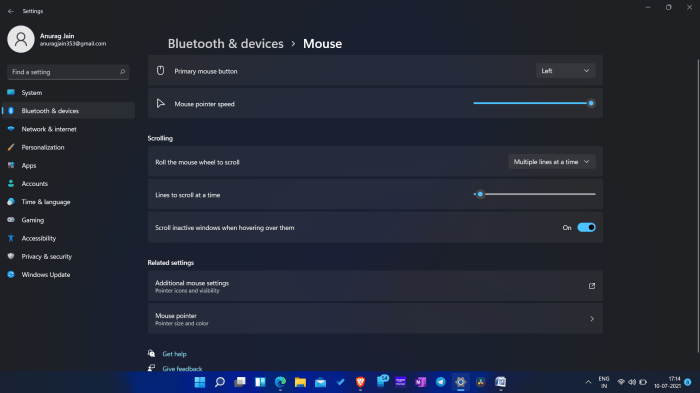
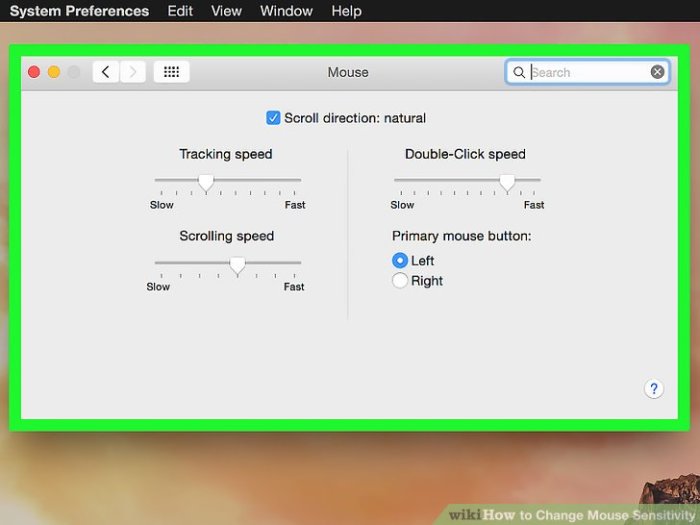
Operating System Settings: Your operating system (Windows, macOS, etc.) also has mouse settings that affect cursor speed. These settings are generally global and affect all applications, not just games. In Windows, you can usually find these settings by searching for “Mouse settings” in the Start Menu. macOS users can find similar settings in System Preferences under “Mouse.” Adjusting these operating system settings will alter the base cursor speed before the game’s in-game sensitivity multiplier is applied.
High vs. Low Sensitivity: A Comparison
| Sensitivity Level | Aim Accuracy | Movement Speed | Player Preference |
|---|---|---|---|
| High | Lower | Higher | Suitable for fast-paced games requiring quick reactions, but may struggle with precision aiming. |
| Low | Higher | Lower | Ideal for games emphasizing precision aiming, such as sniper games, but may feel slower for general navigation. |
Finding Your Optimal Sensitivity
Finding the perfect mouse sensitivity is a personal journey, not a one-size-fits-all solution. It’s about finding the balance between precision and speed that best suits your play style and game. This involves a systematic approach to testing different sensitivities and understanding how DPI and polling rate affect your overall experience.
Experimentation is key to discovering your ideal sensitivity. This isn’t a race; it’s about finding the setting that feels most comfortable and allows for consistent accuracy. Remember to account for your mouse’s DPI and polling rate, as these significantly impact the translation of your hand movements into cursor movement on the screen.
Sensitivity Testing Methods
To effectively find your optimal sensitivity, a structured approach is vital. Begin by selecting a range of sensitivity values, perhaps starting with your current setting and branching out incrementally higher and lower. Spend a considerable amount of time testing each sensitivity within a familiar game environment. Focus on tasks that require precise aim and controlled movements. Note your performance at each sensitivity level – noting any feelings of discomfort, inaccuracy, or excessive strain. After testing each setting, take a short break to prevent fatigue from influencing your judgment. Keep detailed notes of your observations; this will help you identify trends and preferences.
Sensitivity Calculators and Their Use
Sensitivity calculators provide a streamlined method for finding an optimal sensitivity. These tools typically require inputting your current DPI, in-game sensitivity, and desired changes (e.g., aiming for a specific distance to move your mouse to achieve a 360-degree turn in your game). The calculator then uses this information to suggest a new sensitivity setting. While helpful, remember that these are merely guides; your personal comfort and performance should always take precedence. Many online calculators offer different algorithms and methodologies; it’s advisable to try several before settling on a particular setting. Ultimately, these calculators serve as a starting point for your experimentation, not a definitive answer.
DPI and Polling Rate Considerations
Your mouse’s DPI (dots per inch) and polling rate directly impact sensitivity. DPI determines how many pixels the cursor moves per inch of mouse movement; a higher DPI means greater sensitivity. The polling rate, measured in Hertz (Hz), dictates how often the mouse reports its position to the computer. A higher polling rate (e.g., 1000 Hz) provides more precise tracking. Consider the following example: A low DPI paired with a low polling rate results in less sensitive, slower cursor movement; conversely, a high DPI and high polling rate will create much more sensitive, quicker movements. You should adjust your in-game sensitivity accordingly to find a comfortable balance between these factors. A common approach is to start with a moderate DPI and then adjust the in-game sensitivity to fine-tune your control.
Practice Routine for Aim and Movement
Once you’ve selected a sensitivity, consistent practice is essential to hone your skills. A structured routine can significantly improve your aim and movement.
- Target Practice: Use aim trainers or in-game practice ranges to focus on precision. Start with stationary targets and gradually increase the difficulty by incorporating moving targets.
- Tracking Exercises: Practice smoothly tracking moving targets, simulating real-game scenarios. This helps improve your hand-eye coordination and reaction time.
- Flick Shots: Practice quick, precise movements to hit targets that require rapid adjustments. This improves your ability to make instantaneous corrections.
- Controlled Movement Drills: Focus on making controlled, deliberate movements to navigate through environments and maintain precise positioning.
- Game-Specific Training: Incorporate practice into your favorite games, focusing on scenarios that demand accuracy and controlled movement.
Advanced Techniques and Adjustments
Optimizing your mouse sensitivity goes beyond simply finding a single number; it involves understanding how various factors interact to create your ideal setup. This section delves into advanced techniques and adjustments to fine-tune your control and precision. Consider these refinements to truly maximize your gaming performance.
Differentiated Sensitivity Settings
Different in-game actions often benefit from different sensitivity levels. High sensitivity excels for quick, broad movements like general map navigation in RTS games or quickly repositioning in an FPS. Lower sensitivity provides greater precision for aiming and fine adjustments, crucial for headshots in FPS games or precise unit selection in RTS games. The optimal approach involves configuring separate sensitivity settings for aiming and general movement, often achievable through in-game settings or third-party software. This allows for rapid repositioning while maintaining pinpoint accuracy when needed. The disadvantage of using separate sensitivities is the added complexity; it requires more time to adjust and master.
Mouse Grip Styles and Their Influence
Your mouse grip significantly impacts optimal sensitivity. A palm grip, where your entire hand rests on the mouse, typically requires lower sensitivity for better control. A claw grip, where your fingers curl over the mouse, often allows for higher sensitivity due to increased maneuverability. A fingertip grip, using only your fingertips, generally works best with higher sensitivity, offering rapid and precise movements. Experiment with different grips to discover which best suits your preferences and game genre. Switching between grips might also be advantageous, depending on the in-game action; a claw grip for quick movements and a palm grip for aiming, for example.
Environmental Factors: Mousepad and Surface
The mousepad’s surface and size directly influence your mouse’s responsiveness and sensitivity. A hard, smooth surface generally results in faster cursor movement, necessitating lower sensitivity. A textured or cloth surface offers greater control and often pairs better with higher sensitivity. Similarly, a larger mousepad allows for more sweeping movements, while a smaller one necessitates more precise movements and potentially lower sensitivity. Experiment with different mousepad materials and sizes to find what complements your chosen sensitivity and grip style. For example, a large cloth mousepad is suitable for lower sensitivity settings, while a smaller hard mousepad might pair better with higher sensitivity.
Sensitivity Adjustments by Game Genre
The ideal sensitivity varies significantly across game genres. First-person shooters (FPS) usually benefit from lower sensitivity for precise aiming, while real-time strategy (RTS) games often utilize higher sensitivity for rapid map navigation. Multiplayer online battle arenas (MOBAs) frequently require a balance, enabling both quick reactions and precise targeting.
| Game Genre | Recommended Sensitivity Range | Mouse Grip Style | Mousepad Considerations |
|---|---|---|---|
| FPS | Low to Medium (Adjust for DPI) | Palm or Claw | Large, cloth surface for control |
| RTS | Medium to High | Claw or Fingertip | Large, smooth surface for speed |
| MOBA | Medium | Claw or Palm | Medium-sized, balanced surface |
Closure
Optimizing your mouse sensitivity is a journey of discovery, not a destination. Through careful experimentation and understanding of the factors involved, you can significantly improve your performance and enjoyment. Remember that the “perfect” sensitivity is subjective and depends on your individual preferences, play style, and the specific game you’re playing. By following the steps Artikeld above, and consistently practicing, you’ll be well on your way to mastering your mouse and achieving your gaming goals. The key is consistent practice and refinement; don’t be afraid to experiment and adjust as you go!