How to Optimize Your Phone’s Battery Life: 6 Hacks – a seemingly simple question with surprisingly complex answers. Our smartphones are essential tools, yet their batteries often fall short. This guide delves into the intricacies of battery consumption, providing practical tips and advanced techniques to significantly extend your phone’s lifespan between charges. We’ll explore everything from understanding your phone’s power usage patterns to implementing advanced troubleshooting steps.
From identifying battery-draining apps to mastering your phone’s power settings, we’ll equip you with the knowledge to maximize your battery’s potential. Learn how seemingly minor adjustments can yield significant improvements, allowing you to stay connected longer without the constant worry of a depleted battery.
Understanding Your Phone’s Battery Consumption
Optimizing your phone’s battery life requires understanding what drains it. Several key factors contribute to battery depletion, and recognizing these allows for more effective management. This section will explore the major culprits, helping you identify areas for improvement.
Smartphone battery life is influenced by a complex interplay of hardware and software. The components themselves, such as the processor and display, consume power during operation. However, the apps you use, the settings you configure, and even the network you connect to significantly impact battery drain.
Types of Apps and Their Battery Impact
Different apps demand varying levels of processing power and resources. Resource-intensive apps, such as games with high-resolution graphics or video editing software, consume significantly more battery than simpler applications like note-taking or basic calculators. Apps running in the background, even when not actively used, can also contribute to battery drain. Social media apps, for example, frequently update and synchronize data, consuming power even when minimized.
Screen Brightness, Location Services, and Background Processes
Screen brightness is a major factor. A brighter screen consumes considerably more power than a dimmer one. Similarly, location services, constantly using GPS and other sensors to determine your location, are significant battery drainers. Background processes, which are applications running silently in the background, performing tasks like syncing data or checking for updates, can also cumulatively consume substantial battery power. These processes often run continuously, impacting overall battery life.
Comparison of Battery Drain from Various Phone Features
The following table compares the relative battery drain of various phone features. These values are approximate and can vary depending on the specific phone model, network conditions, and usage patterns. It is crucial to remember that concurrent usage of multiple features will lead to a greater overall battery drain.
| Feature | Low Drain | Medium Drain | High Drain |
|---|---|---|---|
| Network Connection | 4G LTE | 5G | 5G with high data usage |
| Connectivity | Wi-Fi (connected to a strong signal) | Bluetooth (streaming audio) | Bluetooth (constant searching for devices) |
| Display | Low brightness, adaptive brightness enabled | Medium brightness | High brightness, always-on display |
| Location Services | Location services off | Location services on, battery optimization enabled | Location services on, high accuracy, GPS constantly active |
Practical Hacks for Extending Battery Life
Optimizing your phone’s battery life often involves a combination of simple adjustments and deeper system tweaks. By understanding your phone’s power consumption patterns and implementing a few key strategies, you can significantly extend the time between charges, reducing the inconvenience of frequent charging and improving your overall mobile experience. This section details practical steps you can take to achieve this.
Five Immediate Actions to Improve Battery Life
Implementing these five quick actions can noticeably improve your phone’s battery performance. These are easy to adopt and require minimal technical expertise.
- Reduce Screen Brightness: A brighter screen consumes significantly more power. Lowering the brightness, even slightly, can make a noticeable difference. Consider enabling automatic brightness adjustment, which dynamically adjusts the screen’s brightness based on ambient light conditions.
- Limit Background App Activity: Many apps continue to run in the background, consuming battery even when not actively used. Restrict background activity for apps you don’t frequently use. This can usually be done within your phone’s settings menu under “Apps” or “Applications”.
- Disable Location Services: GPS and location services are significant battery drainers. Turn them off when not needed, such as when you’re indoors or not using navigation apps.
- Turn Off Unnecessary Wireless Connections: Bluetooth, Wi-Fi, and mobile data consume power. Turn off Wi-Fi and Bluetooth when not in use. Consider using mobile data only when necessary, opting for Wi-Fi whenever possible.
- Minimize Widget Usage: While convenient, widgets constantly update and consume battery power. Reduce the number of widgets on your home screen to conserve battery.
Optimizing Battery Settings Within the Operating System
Accessing and adjusting your phone’s battery settings is crucial for optimizing battery life. This step-by-step guide Artikels the process, although the exact menu names may vary slightly depending on your phone’s manufacturer and Android version or iOS version.
- Locate Battery Settings: Generally, you can find battery settings within your phone’s “Settings” app. Look for options labeled “Battery,” “Power,” or similar.
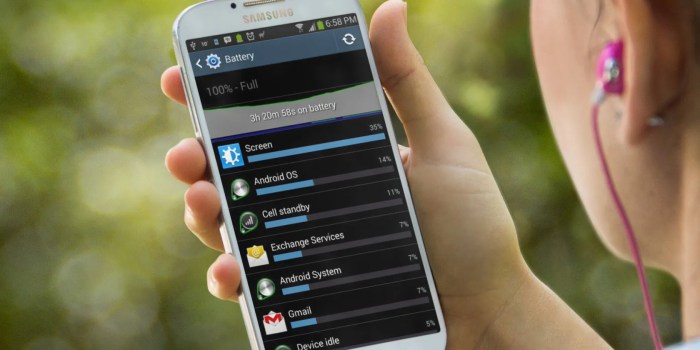
- Review Battery Usage: Most operating systems provide a breakdown of battery consumption by app. This allows you to identify battery-hungry apps and take appropriate action, such as limiting their background activity or uninstalling unused apps.
- Adjust Adaptive Battery Settings (Android): Android’s adaptive battery learns your app usage patterns and restricts battery use for apps you rarely use. Ensure this feature is enabled for optimal performance. For iOS, similar power management features are built-in.
- Enable Low Power Mode: Activating low power mode restricts background activity, reduces screen brightness, and limits certain features to significantly extend battery life. This is a quick and effective way to conserve power when needed.
- Schedule Power Saving Modes: Some phones allow scheduling low power mode to automatically activate at certain times, such as overnight or during periods of low activity.
Benefits of Low Power Mode or Battery Saver Options
Low power mode or battery saver options offer several key benefits. These features are designed to extend battery life without significantly impacting essential functionality.
- Extended Battery Life: The most obvious benefit is a significant increase in battery life, often extending usage by several hours or even a full day depending on usage patterns.
- Reduced Background Activity: Low power mode restricts background app activity, preventing apps from consuming battery while not in use. This conserves power and improves performance.
- Improved Performance in Low-Battery Situations: When the battery is critically low, low power mode helps prevent the phone from shutting down unexpectedly, ensuring continued use until charging is possible.
Comparison of Battery-Saving Apps
Numerous battery-saving apps are available, but their effectiveness varies. Some apps may offer advanced features, while others may simply provide basic power management tools. It’s important to choose a reputable app from a trusted source and be aware that excessive use of these apps can sometimes interfere with normal phone operation. A built-in operating system power management feature is often the most effective and reliable option.
Tips for Managing App Usage and Notifications to Conserve Battery
Careful management of apps and notifications is key to conserving battery power. Unnecessary notifications and background app activity are significant battery drainers.
- Disable Unnecessary Notifications: Review your app notification settings and disable notifications for apps you don’t need constant updates from. This reduces the frequency of screen wake-ups and background activity.
- Uninstall Unused Apps: Uninstall apps you no longer use. Even inactive apps can consume a small amount of battery power.
- Restrict Background Data for Specific Apps: Limit background data usage for apps that don’t require constant connectivity. This can be done within the app’s settings or your phone’s overall app management settings.
- Regularly Review App Permissions: Check the permissions granted to your apps and revoke any unnecessary access to location, contacts, or other sensitive data. Unnecessary access can drain battery power.
Advanced Techniques and Troubleshooting
Understanding the basics of battery optimization is crucial, but sometimes deeper investigation is needed to truly maximize your phone’s lifespan. This section delves into more advanced techniques and troubleshooting steps for resolving persistent battery drain issues. We’ll explore common culprits, potential hardware problems, and methods for effectively diagnosing and resolving these issues.
Common Causes of Unexpectedly Rapid Battery Drain
Several factors can contribute to unexpectedly rapid battery depletion. Background apps consuming excessive resources, high screen brightness settings, and constantly active location services are frequent offenders. Furthermore, outdated software can sometimes introduce inefficiencies that lead to increased power consumption. Finally, certain apps, especially those with intensive graphics or data processing requirements, can significantly impact battery life. For instance, consistently playing graphically demanding mobile games or using navigation apps for extended periods will drain the battery faster than less resource-intensive tasks.
Potential Hardware Issues Affecting Battery Performance
Hardware problems can also significantly impact battery performance. A failing battery, characterized by rapid discharge even with minimal usage, is a prime suspect. Other potential issues include faulty charging ports, damaged charging cables, or problems with the phone’s power management circuitry. A visibly swollen or damaged battery is a clear indication of a hardware problem and should be addressed immediately by a qualified technician. For example, a phone dropping repeatedly or exposure to extreme temperatures can damage the battery and its internal components, leading to premature degradation and decreased performance.
Calibrating Your Phone’s Battery
Calibrating your phone’s battery involves resetting the operating system’s battery level tracking mechanism. This can improve the accuracy of battery level indicators and sometimes improve overall battery performance. The process usually involves fully discharging the battery, followed by a complete charge without interruption. The specific steps may vary depending on the phone’s operating system (Android or iOS), but the fundamental principle remains the same: allow the battery to fully discharge and then fully recharge to reset the internal tracking. Note that this is not a guaranteed fix for all battery problems, and its effectiveness varies from device to device and operating system version.
Interpreting Battery Usage Statistics
Most modern smartphones provide detailed battery usage statistics within their settings. These statistics typically show which apps and system processes are consuming the most power. By analyzing this data, users can identify energy-hungry apps and take steps to manage their usage. For example, if the “Screen” is listed as the top battery consumer, reducing screen brightness or adjusting screen timeout settings can significantly improve battery life. Similarly, identifying apps consistently running in the background and consuming significant power allows users to either close those apps or adjust their settings to reduce power consumption. This data provides valuable insights into your phone’s energy usage patterns, allowing for targeted optimization efforts.
Troubleshooting Battery-Related Problems: A Flowchart
A systematic approach is key to troubleshooting battery problems. The following flowchart Artikels a logical sequence of steps to identify and resolve common issues:
[Imagine a flowchart here. The flowchart would start with “Battery Draining Quickly?” Yes would lead to “Check Battery Usage Statistics” which branches to “Identify High-Consumption Apps” (leading to “Limit App Usage/Uninstall”) and “Check Screen Brightness/Timeout” (leading to “Adjust Settings”). No would lead to “Check for Hardware Issues” which branches to “Damaged Battery/Charging Port?” (leading to “Replace Battery/Repair Port”) and “Software Issues?” (leading to “Update Software/Factory Reset”). All paths ultimately converge on “Is Battery Life Improved?” Yes ends the flowchart, No loops back to “Check Battery Usage Statistics”.]
Last Word
Mastering your phone’s battery life isn’t about sacrificing functionality; it’s about optimizing performance. By understanding the factors influencing battery drain and implementing the strategies Artikeld in this guide, you can significantly extend the time between charges. Remember, consistent application of these tips will lead to a noticeable improvement in your phone’s battery performance, keeping you connected and productive throughout your day. Take control of your battery life – it’s easier than you think.