Captivating presentations hinge on impactful slides. This guide unveils eight essential design tips to transform your presentations from mundane to memorable. We’ll explore visual hierarchy, color palettes, typography choices, and content structuring – all crucial elements for effectively communicating your message and engaging your audience.
By mastering these techniques, you’ll learn to create slides that are not only visually appealing but also enhance comprehension and leave a lasting impression. We’ll cover practical examples and actionable advice to help you immediately improve your presentation design skills.
Visual Hierarchy and Layout
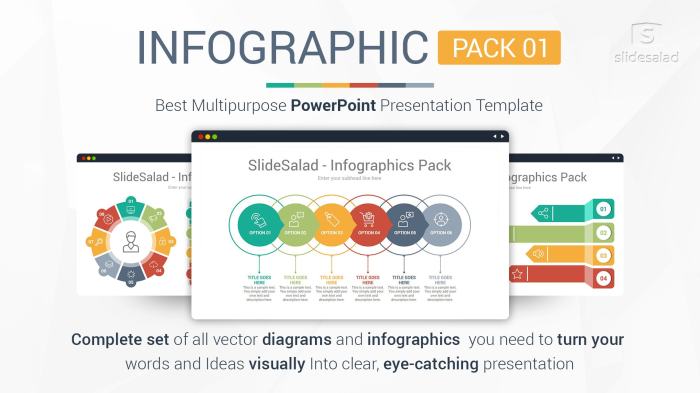
Effective visual hierarchy and layout are crucial for creating compelling presentations. A well-designed slide guides the viewer’s eye effortlessly, ensuring key information is absorbed quickly and easily. Poor design, on the other hand, can lead to confusion and lost engagement. This section will explore techniques to master visual hierarchy and create impactful slide layouts.
The foundation of effective visual hierarchy lies in prioritizing information. This prioritization is achieved through the strategic use of size, color, and placement of elements on the slide. Larger elements naturally draw more attention than smaller ones. Similarly, bright, contrasting colors stand out more than muted tones. By carefully positioning elements, you can direct the viewer’s gaze in a specific order, ensuring they see the most important information first. Think of it as creating a visual path for your audience’s eyes to follow.
Whitespace and Readability
Whitespace, often overlooked, is a powerful tool for enhancing readability and visual appeal. It provides breathing room between elements, preventing a cluttered and overwhelming appearance. Effective use of whitespace creates visual separation, making it easier for the audience to process information. Consider a slide with a central heading, a concise bullet-point list, and an illustrative image. Leaving ample white space around each element creates a clean, uncluttered, and professional look. Imagine a slide with a large, bold title at the top, a short bullet-point list beneath it with significant spacing between each point, and a relevant image placed to the side with generous margins. This strategic use of whitespace would allow for easy reading and digestion of the information.
Examples of Effective Visual Hierarchies
Below are three examples illustrating effective visual hierarchies for presenting data, text, and images. These examples demonstrate how size, color, and placement work together to guide the viewer’s eye and enhance understanding.
| Data Hierarchy | Text Hierarchy | Image Hierarchy | Combined Hierarchy |
|---|---|---|---|
| A bar chart with the highest bar prominently colored and slightly larger than others. The chart’s title is significantly larger than the axis labels. The data points are clearly labeled with a larger font size for key values. | A headline in a large, bold font is at the top. Subheadings are smaller and in a slightly lighter font. Body text is the smallest and uses a consistent font. Key phrases or terms are emphasized with bolding or italics. | A large, high-resolution image dominates the slide. A small caption beneath provides context. Minimal text is included, allowing the image to be the focal point. | A large, impactful image occupies a significant portion of the slide. A concise headline is placed above the image. Key data points are presented in a small, clear infographic to the side of the image, allowing the viewer to grasp the main idea quickly. |
Visual Cues for Direction and Understanding
Visual cues, such as arrows, lines, and shapes, are invaluable tools for directing attention and clarifying relationships between elements on a slide. Arrows can point to specific data points or highlight key features in an image. Lines can connect related items or illustrate a process flow. Shapes can be used to group related information or create visual emphasis. For instance, a line connecting two data points on a chart immediately shows a relationship between them, while a box around a key phrase emphasizes its importance. Using arrows to highlight specific sections within an image can help guide the viewer’s focus. Consider using a combination of these elements for a dynamic and engaging presentation.
Color Palette and Typography
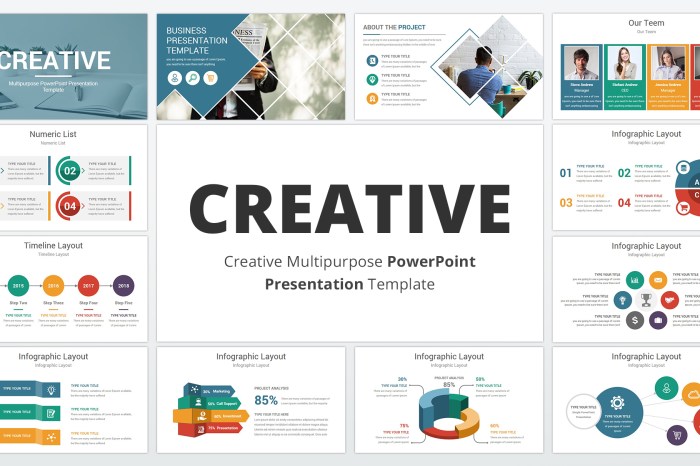
Effective presentation design hinges on a carefully chosen color palette and typography. These elements not only enhance visual appeal but also significantly impact the audience’s comprehension and retention of information. A well-designed presentation uses color strategically to guide the viewer’s eye and highlight key data points, while typography ensures readability and maintains a consistent brand identity.
Selecting a color palette requires consideration of both aesthetics and functionality. The colors you choose should evoke the desired mood and align with your presentation’s overall message. However, it’s equally crucial to ensure sufficient contrast for readability, especially for text against background colors. Using color strategically to emphasize key points—such as highlighting important statistics or directing attention to specific sections—can greatly improve the effectiveness of your presentation.
Harmonious Color Palette Example
Consider a presentation on sustainable energy solutions. A harmonious color palette could utilize shades of green (representing nature and sustainability), blue (representing water and energy), and a neutral beige or off-white for the background. Green could be used for headings and key data points related to environmental impact, while blue could highlight sections on technological advancements. The beige background provides a calming and neutral backdrop that doesn’t compete with the key information. This palette is both visually appealing and aids in information retention by using color to logically group and categorize information.
Font Pairing Readability Comparison
The readability of your presentation is directly influenced by your choice of fonts. Pairing fonts effectively enhances visual appeal and ensures ease of reading. Different font combinations impact readability in varying degrees. Below is a comparison of four font pairings, demonstrating how different combinations affect readability.
| Font Pairing | Headline Font | Body Font | Readability Assessment |
|---|---|---|---|
| Pairing 1 | Arial | Times New Roman | Moderate. The contrast in styles can be jarring for some readers. |
| Pairing 2 | Open Sans | Roboto | High. Both fonts are clean, modern, and highly legible. The similarity in style provides visual harmony. |
| Pairing 3 | Playfair Display | Lora | High. The elegant serif headline font pairs well with the readable serif body font, creating a sophisticated yet easily readable presentation. |
| Pairing 4 | Impact | Comic Sans | Low. The highly contrasting styles and less-than-ideal readability of Comic Sans make this pairing unsuitable for formal presentations. |
Effective Presentation Fonts
Three fonts frequently used and effective for presentations are Open Sans, Roboto, and Montserrat. Open Sans is a highly legible sans-serif font suitable for both headlines and body text. Roboto, another sans-serif font, is clean, modern, and easily readable on screens. Montserrat is a geometric sans-serif font that offers a modern and stylish feel without sacrificing readability. These fonts are versatile, easily accessible, and widely considered to be highly legible across different screen sizes and resolutions.
Imagine a sample slide with the title “Sustainable Solutions” in Montserrat (headline), a brief description in Open Sans (body text), and key data points highlighted in Roboto (for emphasis). The visual consistency and clear readability provided by this combination would enhance the overall presentation.
Content and Messaging

Crafting compelling and easily digestible content is paramount to a successful presentation. Your slides should act as visual aids, supporting your spoken words, not replacing them. Avoid overwhelming your audience with dense text; instead, prioritize clarity and conciseness. Remember, your goal is to engage, not to bore.
Effective messaging hinges on a clear understanding of your key takeaways. Each slide should have a single, focused message. Overloading a slide with multiple concepts dilutes their impact and confuses your audience. Visuals are your allies in achieving this clarity.
Headline and Supporting Points
A strong headline immediately grabs the audience’s attention and sets the tone for the slide. It should concisely summarize the main point. Supporting bullet points then expand on this central idea, providing key details and evidence. Avoid lengthy sentences; aim for brevity and impact. For instance, a slide on “Boosting Sales Through Social Media” could have bullet points such as “Targeted advertising campaigns,” “Engaging content creation,” and “Community building.” This structure allows for a clear, concise, and easily digestible message.
Visual Aids for Enhanced Understanding
Visuals are crucial for enhancing comprehension and retention. They break up large blocks of text, making the information more approachable. Effective visuals help translate complex ideas into easily understandable concepts.
- Charts and graphs: Illustrate data trends and comparisons effectively, transforming raw numbers into easily digestible visuals. For example, a bar chart comparing sales figures across different quarters clearly showcases performance trends.
- Images and icons: Convey abstract ideas concretely. A picture of a happy customer can be more powerful than a lengthy description of positive customer feedback.
- Infographics: Combine data visualization with narrative elements, creating visually appealing summaries of complex information. An infographic could visually represent the steps involved in a complex process, breaking down each stage for clarity.
Simplifying Complex Information
Presenting complex information requires careful structuring and simplification. Break down intricate topics into smaller, manageable chunks. Use visual cues, like headings and subheadings, to guide the audience through the information.
Keep it simple. The simpler your message, the more likely it is to be understood and remembered.
Break down complex ideas into smaller, digestible parts. Use visuals to illustrate key concepts.
Prioritize clarity and conciseness. Avoid jargon and technical terms your audience may not understand.
Final Conclusion
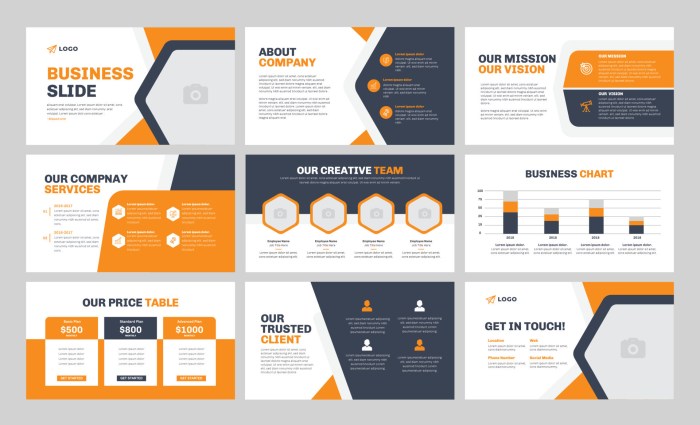
Ultimately, effective presentation slide design boils down to clarity, conciseness, and visual appeal. By strategically employing visual hierarchy, a harmonious color palette, and impactful typography, you can create slides that seamlessly guide your audience through your message. Remember, the goal is not just to present information, but to create an engaging and memorable experience. Implement these eight tips, and watch your presentations transform.